• Which the release of FS2020 we see an explosition of activity on the forun and of course we are very happy to see this. But having all questions about FS2020 in one forum becomes a bit messy. So therefore we would like to ask you all to use the following guidelines when posting your questions:

    • Tag FS2020 specific questions with the MSFS2020 tag.
    • Questions about making 3D assets can be posted in the 3D asset design forum. Either post them in the subforum of the modelling tool you use or in the general forum if they are general.
    • Questions about aircraft design can be posted in the Aircraft design forum
    • Questions about airport design can be posted in the FS2020 airport design forum. Once airport development tools have been updated for FS2020 you can post tool speciifc questions in the subforums of those tools as well of course.
    • Questions about terrain design can be posted in the FS2020 terrain design forum.
    • Questions about SimConnect can be posted in the SimConnect forum.

    Any other question that is not specific to an aspect of development or tool can be posted in the General chat forum.

    By following these guidelines we make sure that the forums remain easy to read for everybody and also that the right people can find your post to answer it.

Background image resizing to object scale

Messages
7
Country
belgium
Hello

Being new in Blender (2.82) as well as 3D-modelling, I'm looking for advise regarding "background image resizing".

I am trying to make a low poly aircraft just as an exercise. What I did is as follows:
1. Adding a background image into Blender (technical drawing of the aircraft) in right orthographic view
2. Adding a cylinder (being the basic shape)
3. Rotating the cylinder to match the view perspective
4. Adapt the "aircraft length" dimension (y-axis) to have a real scale dimension (Example image below)


What I want to do know is resizing the background image using the same proportion as the cylinder. So the background image will display the real life dimensions which I can use as a reference.
But I'm not really sure how to. So my question is, how would I correctly size the background image TO the object (not vice versa)? Of course, if there is a better way to do this, I'm happy to hear.

I can resize the background image manually based on look and feel. But I want to have it correctly adapted instead of playing around with the size.
I'm using the metric system. The united of the cylinder were initially 1m whilest the background image size is 5m (being a 1139x1667 .png file)
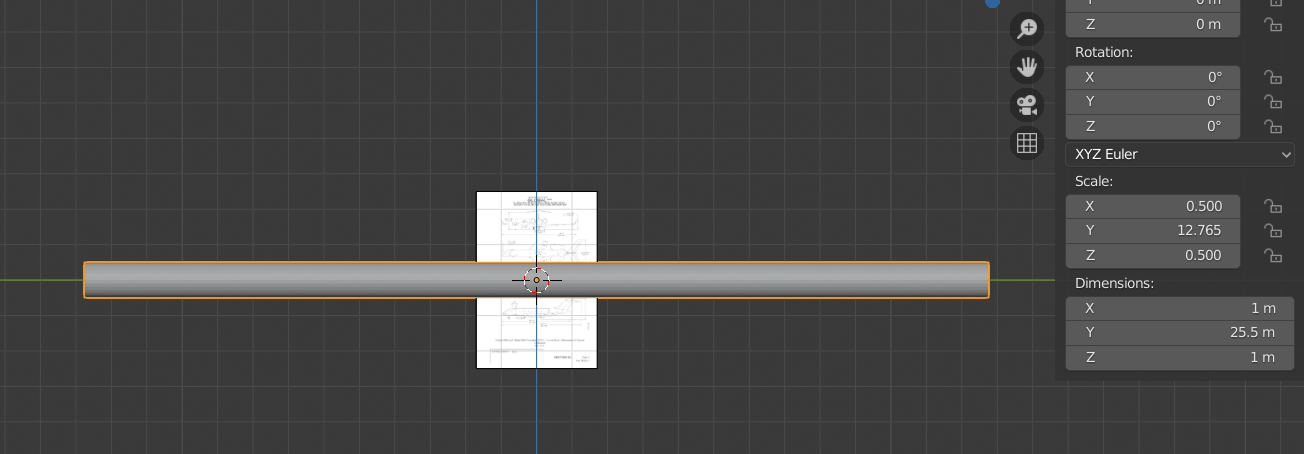
Capture.PNG


My apologies must the above question be a repetitive one but the existing tutorials and manuals didn't include an answer to my question.

Thanks for any feedback!

Rgds
 
That's actually a really interesting question - what would be the proper procedure to scale your reference drawings to match your grid.
So far, I've been using a similar method as you. I usually put a reference block down that I scale up to match the known dimension of the aircraft. That is usually wingspan*length*height, although height can be a bit tricky. Next, I add the reference image, scale it up (s) and move it (g) to match my reference cube. As long as you scale the image in all dimensions simultaneously, the aspect ratio should work out alright. Once your satisfied with the view you started with, shift+d or alt+d to duplicate your image and then rotate it by 90 degrees (r x/y/z 90) and use g to move it to the right position. Rinse and repeat until the resulting outline matches your expectations.

But as I said, if there's an empirical way to scale up the reference image, I'd be interested to hear it too!
 
I do simple work, but this done in 3Dsmax, just share the work flow,
1. cut blueprint image became 3 separate image file (or more depend on source reference). each file would have it own view (left, top, front). image file must be precise the most outer of image draw (regardsless size / pixel).
2. in 3dsmax, create box with aircraft dimension. flip normal all polygon, on object properties check mark backface cull.
3. change each polygon into different material ID (depend on file would attached).
4. in material editor create material with sub-material, insert all reference file.
5. attach sub-material into right polygon (left, top, front).
done
 
Hey @kalong

Can you do us a favor... could you send a simple .x file of a box with PBR textures and other textures. All from 3dsMax that is?

Also, a simple question: Are you able to convert into a model file just by using simple materials (non-textured) with 3dsMax?
 
yes, just standby...
if you have sample PBR texture make me faster create model

yes, non textured model work fine in sim. in P3D non textured model doesn't cast shadow, however it still received shadow.
 
Thanks... I have a PBR texture but it's too large would you PM your email?
 
Once your satisfied with the view you started with, shift+d or alt+d to duplicate your image and then rotate it by 90 degrees (r x/y/z 90) and use g to move it to the right position. Rinse and repeat until the resulting outline matches your expectations.

That is what I do now, indeed.


I do simple work, but this done in 3Dsmax, just share the work flow,
1. cut blueprint image became 3 separate image file (or more depend on source reference). each file would have it own view (left, top, front). image file must be precise the most outer of image draw (regardsless size / pixel).
2. in 3dsmax, create box with aircraft dimension. flip normal all polygon, on object properties check mark backface cull.
3. change each polygon into different material ID (depend on file would attached).
4. in material editor create material with sub-material, insert all reference file.
5. attach sub-material into right polygon (left, top, front).
done


That's a possible solution but any idea on the exact scaling of BG-images rather than doing the above (or eyeballing)?

Thank you both so far!
 
Back
Top