

n4gix
Resource contributor
- Messages
- 11,674
- Country

The chief "problem" with converting the "Normal Maps" that are produced by CrazyBump is that even when run through ImageTool.exe using the correct command line parameter list the Blue Channel retains it's "normal component" instead of reverting to pure white as per the FSX SDK specifications.
IMAGE TOOL:
If you plan to use ImageTool.exe to convert the "Normal Map" to an "FSX Bump Map," simply use your Paint program to remove the "normal component" from the Blue Channel. IOW, "paint it pure white!" Then, select the Green Channel's "normal component" and Invert the image in that Channel. ImageTool.exe will - with the correct parameter list - will "move the Red Channel components" to the Alpha Channel, flip the image, and save the file automatically.
PHOTOSHOP CS:
Below are two pictures illustrating how we can correct this problem using Photoshop CS:
In the image below is the output file that CrazyBump generated for the C172 default aircraft:
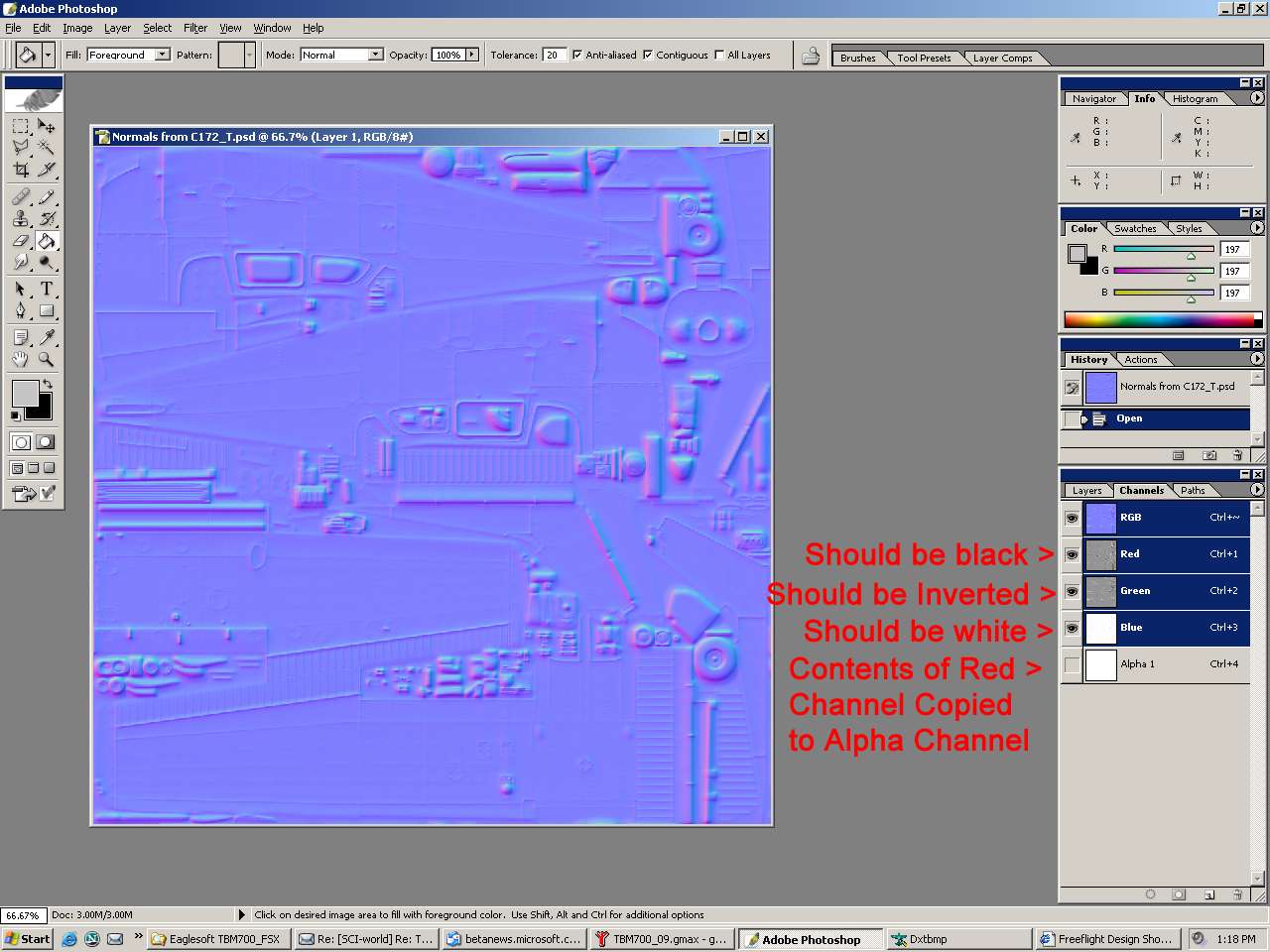
Here is the "Bump Map" after applying the "fixes required" prior to "flipping vertically" and saving directly from Photoshop to DDS/DXT5 format.

IMAGE TOOL:
If you plan to use ImageTool.exe to convert the "Normal Map" to an "FSX Bump Map," simply use your Paint program to remove the "normal component" from the Blue Channel. IOW, "paint it pure white!" Then, select the Green Channel's "normal component" and Invert the image in that Channel. ImageTool.exe will - with the correct parameter list - will "move the Red Channel components" to the Alpha Channel, flip the image, and save the file automatically.
PHOTOSHOP CS:
Below are two pictures illustrating how we can correct this problem using Photoshop CS:
In the image below is the output file that CrazyBump generated for the C172 default aircraft:
Here is the "Bump Map" after applying the "fixes required" prior to "flipping vertically" and saving directly from Photoshop to DDS/DXT5 format.


