

- Messages
- 52
- Country

Some people have asked about displaying normals in Blender so here is a quick "how to" post to help you out if you don't know.
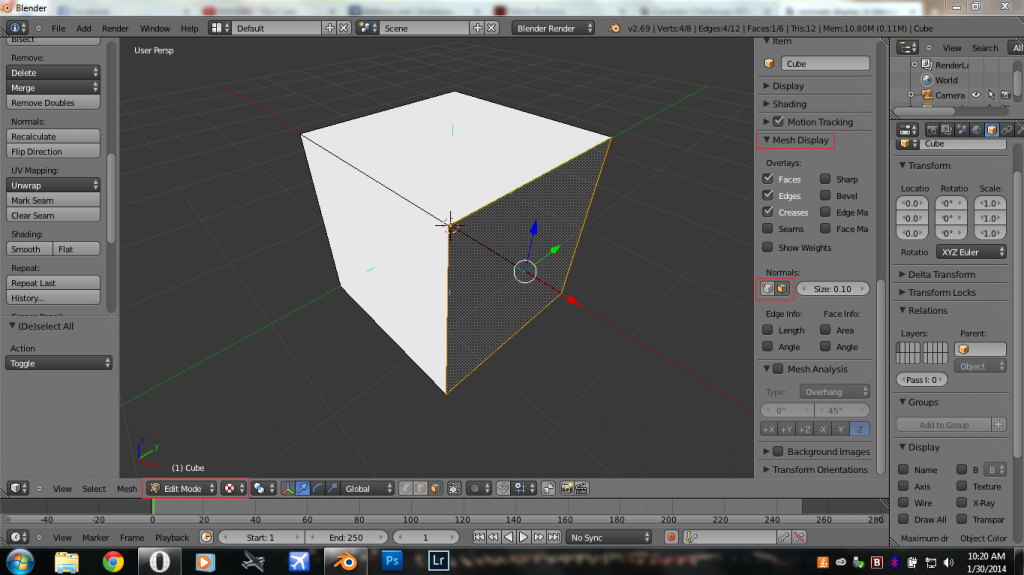
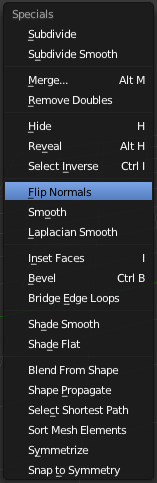
Select your object, go into edit mode, press the "n" key, and scroll down to where it says "Mesh Display". Click the faces icon to show normals along faces. Make sure your viewport shading mode is set to "Texture" so you can more easily identify flipped normals which will show as transparent faces. You can then flip the inverted normals by selecting the suface you want to flip and clicking the "Flip Normals" button on the left side menu or by accessing the "specials" menu with the "w" key and selecting it from the list. ("w"+"f"= "Flip Normals" hotkey)
Thats about all there is to it. Happy texturing.
Select your object, go into edit mode, press the "n" key, and scroll down to where it says "Mesh Display". Click the faces icon to show normals along faces. Make sure your viewport shading mode is set to "Texture" so you can more easily identify flipped normals which will show as transparent faces. You can then flip the inverted normals by selecting the suface you want to flip and clicking the "Flip Normals" button on the left side menu or by accessing the "specials" menu with the "w" key and selecting it from the list. ("w"+"f"= "Flip Normals" hotkey)
Thats about all there is to it. Happy texturing.


