

jtanabodee
Resource contributor
- Messages
- 3,924
- Country

Hi Folks,
Smart guys please pass this away, here is just for dump guys like me.
Gmax give us MDL file when export the model or animation. On the other way, bigger and better brother,3dsmax , does not give us mdl. It give us Xfile and Xanim file separately. We need to take XtoMdl.exe to get MDL.
You can use drag and drop for the model without animation. But with animation you need to do it by command line.
Please understand that I'm the dumpiest man in the world of computer. Command line in the computer is always a nightmare for me. According to this Wiki , I have tried so many time to copy, paste and do many things to have that marvelous short cut to my desktop. I was too dump to understand what was well written in the Wiki.
Today I tried another attempt and I got it!
So I would like to share the method by a mini picture tutorial to guide you to do this short cut to help compiling the X file that you get when you export your model from 3dsmax.
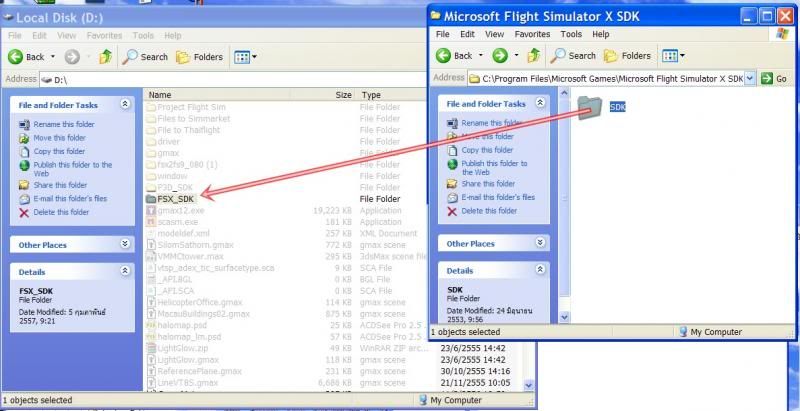
First of all, please make new folder in Drive C: or Drive D: and name it as FSX_SDK. Then copy this folder into the new one that you just made. Please use "copy" so that all the paths that you have set to many programs such as ADE, SbuilderX will not get mad at you.
It will make your life easier than the default one. The path is too long more than 256 letters is not accepted by this method.
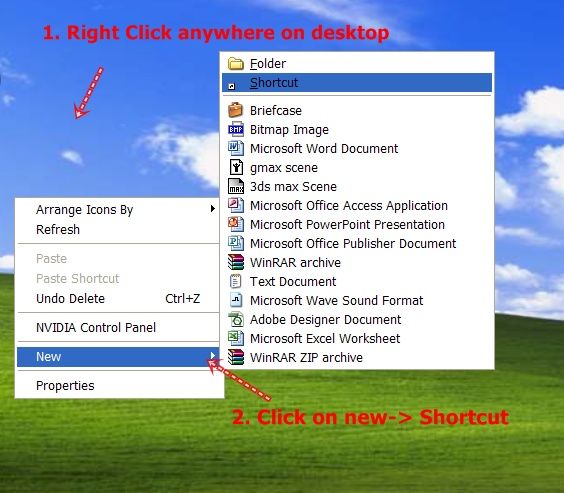
1.Click anywhere on your desktop
2.Click on "New" Short Cut as figure.
3.It will pop out a wizard to help you create Short Cut. Please browse until you find XtoMdl.exe.(4)

4.When you find it click on OK (5) and the shortcut name will be XtoMdl.exe. You can change the name to SceneryCompile or anything you want (6).


5.Now it is time to modify the short cut. Click on the shortcut that you just made and click on property. According to the Wiki the command line should be.
Put the bold text into the Target just in front of the text that we already have. Like this following picture. The letters on red line are what I just put to. Then the quotation mark is not in the right place. In this picture the " mark is before the C: I need to put it behind C: C: is your hard drive. So it may be D: in your computer.
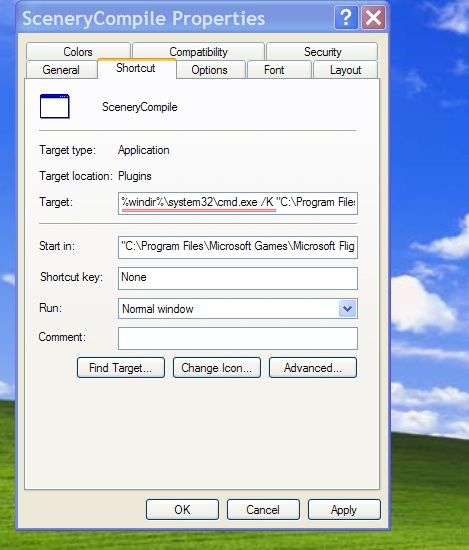
Now this is what it is.

6. Now you have to put the letter on what I quote that is undeline to the Target just behind '..........XtoMdl.exe". I put only /XMLSAMPLE > buildlog.txt to it. Not exactly like in Wiki but it works. The command line cannot be longer than 256 characters. You cannot use default SDK folder, you need to move the SDK folder to the new one just like I said on the first paragraph.
7. Now go to click on MyComputer on desktop and go to C:\Documents and Settings\**your user name** , you will get this folder. Change the folder option to show hidden files. You will see "SendTo" folder. Put your new short cut there.

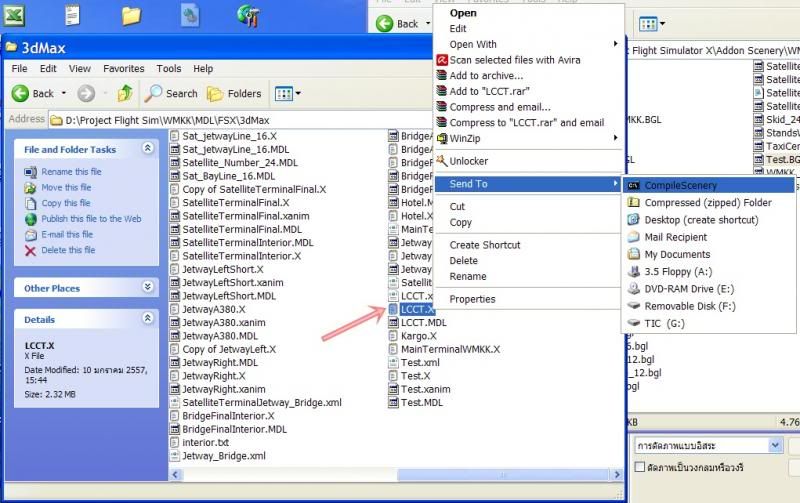
8. Now go to your X.file and then right click, then go to send to. You will see the option of your short cut there. Click on it you will get your MDL instantly.
Sorry if you think this is just simple but not all of us are computer guys. Reading in Wiki only does not make me understand. Picture tutorial does help a lot.
Smart guys please pass this away, here is just for dump guys like me.
Gmax give us MDL file when export the model or animation. On the other way, bigger and better brother,3dsmax , does not give us mdl. It give us Xfile and Xanim file separately. We need to take XtoMdl.exe to get MDL.
You can use drag and drop for the model without animation. But with animation you need to do it by command line.
Please understand that I'm the dumpiest man in the world of computer. Command line in the computer is always a nightmare for me. According to this Wiki , I have tried so many time to copy, paste and do many things to have that marvelous short cut to my desktop. I was too dump to understand what was well written in the Wiki.
Today I tried another attempt and I got it!
So I would like to share the method by a mini picture tutorial to guide you to do this short cut to help compiling the X file that you get when you export your model from 3dsmax.
First of all, please make new folder in Drive C: or Drive D: and name it as FSX_SDK. Then copy this folder into the new one that you just made. Please use "copy" so that all the paths that you have set to many programs such as ADE, SbuilderX will not get mad at you.
It will make your life easier than the default one. The path is too long more than 256 letters is not accepted by this method.

1.Click anywhere on your desktop
2.Click on "New" Short Cut as figure.

3.It will pop out a wizard to help you create Short Cut. Please browse until you find XtoMdl.exe.(4)

4.When you find it click on OK (5) and the shortcut name will be XtoMdl.exe. You can change the name to SceneryCompile or anything you want (6).


5.Now it is time to modify the short cut. Click on the shortcut that you just made and click on property. According to the Wiki the command line should be.
%windir%\system32\cmd.exe /K E:"\FSX_SDK\SDK\Environment Kit\Modeling SDK\3DSM7\Plugins\xtomdl.exe" /DICT:E:"\FSX_SDK\SDK\Environment Kit\Modeling SDK\bin\modeldef.XML" /XMLSAMPLE > buildlog.txt
Put the bold text into the Target just in front of the text that we already have. Like this following picture. The letters on red line are what I just put to. Then the quotation mark is not in the right place. In this picture the " mark is before the C: I need to put it behind C: C: is your hard drive. So it may be D: in your computer.

Now this is what it is.

6. Now you have to put the letter on what I quote that is undeline to the Target just behind '..........XtoMdl.exe". I put only /XMLSAMPLE > buildlog.txt to it. Not exactly like in Wiki but it works. The command line cannot be longer than 256 characters. You cannot use default SDK folder, you need to move the SDK folder to the new one just like I said on the first paragraph.
7. Now go to click on MyComputer on desktop and go to C:\Documents and Settings\**your user name** , you will get this folder. Change the folder option to show hidden files. You will see "SendTo" folder. Put your new short cut there.

8. Now go to your X.file and then right click, then go to send to. You will see the option of your short cut there. Click on it you will get your MDL instantly.

Sorry if you think this is just simple but not all of us are computer guys. Reading in Wiki only does not make me understand. Picture tutorial does help a lot.
Last edited:


