

- Messages
- 10,158
- Country

I have started using 'Create Selection Set' quite a bit now. Great for creating a hide-list so you can work on only panel parts, select all except the pilot and things for a 'interior' cabin model export, etc. But I didnt know how in the world you delete a list or modify it. I had been adding lists with no way I knew of to delete lists or modify them. Its easy enough to create one, but how in the world do you delete one or modify it? All you have is the slot to enter a new list.
Today I figured I would read up on it. Perhaps there is a 'hidden' little menu thing that works it. And behold, there is... A really cool, complete menu popup thing that has a button for it right next to the 'Create Selection Set' slot.
I wanted to share this with you model makers that use Max and are dealing with Sets of parts constantly to rework things (like panlels and 3d gauges, etc), exporting select parts for testing, etc etc etc...
'The Clicky Button' Hidden from Sight....
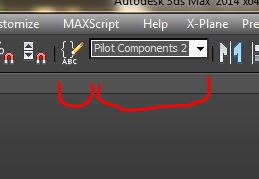
This is the editor button that brings up the Menu for Create Selection Set. Has some brackets and a pencil. The pencil is not animated. So do not expect it to move around when you click it. Its not advanced like our flight plane models.
The Amazing Menu thing!

This is the handy dandy worlds most awesome Selection List Editor command center where you can change parts of the Universe with just a clicky.... Beware, it doesnt double ask you things when you make edits. You click something and its done. Done.... No going back.
Just wanted to share that.
Bill of the gray eyebrow people...
Today I figured I would read up on it. Perhaps there is a 'hidden' little menu thing that works it. And behold, there is... A really cool, complete menu popup thing that has a button for it right next to the 'Create Selection Set' slot.
I wanted to share this with you model makers that use Max and are dealing with Sets of parts constantly to rework things (like panlels and 3d gauges, etc), exporting select parts for testing, etc etc etc...
'The Clicky Button' Hidden from Sight....
This is the editor button that brings up the Menu for Create Selection Set. Has some brackets and a pencil. The pencil is not animated. So do not expect it to move around when you click it. Its not advanced like our flight plane models.
The Amazing Menu thing!
This is the handy dandy worlds most awesome Selection List Editor command center where you can change parts of the Universe with just a clicky.... Beware, it doesnt double ask you things when you make edits. You click something and its done. Done.... No going back.
Just wanted to share that.
Bill of the gray eyebrow people...


