- Messages
- 20
- Country

Hi, im trying to make a working clock for msfs2020, i saw a thread on one which was a simobject. But how do the project folder structure has to look like, and where to export the object to?

Any other question that is not specific to an aspect of development or tool can be posted in the General chat forum.
By following these guidelines we make sure that the forums remain easy to read for everybody and also that the right people can find your post to answer it.


<AssetGroup Name="simobject1">
                    <Type>SimObject</Type>
                    <Flags>
                        <FSXCompatibility>false</FSXCompatibility>
                    </Flags>
                <AssetDir>PackageSources\SimObjects\Landmarks\yourObjectName\</AssetDir>
                <OutputDir>SimObjects\Landmarks\yourObjectName\</OutputDir>
</AssetGroup>
<Component ID="playersPlaying" Node="playersPlaying">
<Visibility>
<Parameter>
<Code>(E:LOCAL TIME, Seconds) 28800 > (E:LOCAL TIME, Seconds) 64800 < and if{ 1 } els{ 0 }</Code>
</Parameter>
</Visibility>
</Component><Component ID="closedUmbrella" Node="closedUmbrella">
<Visibility>
<Parameter>
<Code>(A:AMBIENT PRECIP STATE, mask) 3.0 > if{ 1 } els{ 0 }</Code>
</Parameter>
</Visibility>
</Component> docs.flightsimulator.com


Thanks alot mate.Hi there
first thing first, this explanation won't be possible without the knowledge of the King on Kings of animations here, mr Christian Bahr, his Bahrometrix are wonderful
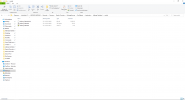
Basically, in your PackageSources folder, you should add the following:
PackageSources\
---- SimObjects\
------- Landmarks\
---------- yourObjectName\
------------- model\
----------------- model.cfg
----------------- yourObjectName.xml
----------------- yourObjectName.gltf
----------------- yourObjectName.bin
-----------------
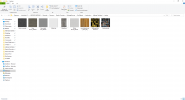
------------- texture\
------------- sim.cfg
and in your PackageDefinitions.xml
Code:<AssetGroup Name="simobject1"> <Type>SimObject</Type> <Flags> <FSXCompatibility>false</FSXCompatibility> </Flags> <AssetDir>PackageSources\SimObjects\Landmarks\yourObjectName\</AssetDir> <OutputDir>SimObjects\Landmarks\yourObjectName\</OutputDir> </AssetGroup>
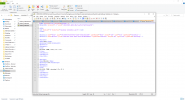
All the magic happens in the yourObjectName.xml
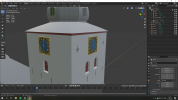
Attached you can find a full msfs project with a basic SimObjects and its source files (in blender) - not a clock, i have already shared my digital clock here, somewhere
In this example, i used the <Visibility> tag to show meshes in certain conditions:
the kids are playing from 8 am to 6pm , and from 6pm to 8am they rest on the bench with their ball
the ball is also animated with basic keyframe (here i'm playing with visibility, you can also use keyframe animations to show/hide meshes, you will be using them to drive your
clock!)
Code:<Component ID="playersPlaying" Node="playersPlaying"> <Visibility> <Parameter> <Code>(E:LOCAL TIME, Seconds) 28800 > (E:LOCAL TIME, Seconds) 64800 < and if{ 1 } els{ 0 }</Code> </Parameter> </Visibility> </Component>
this line of code infact, can be translated as:
if
local time, in seconds
is greater that 28800 seconds (28800/60 minutes per hour/60 seconds per minute = 8am)
and
local time, in seconds
is greater than 64800 seconds ((64800/60 minutes per hour/60 seconds per minute = 8am)
then
set the visibility ot the playerPlayin mesh to true ( {1} in the code)
else
set the visibility ot the playerPlayin mesh to false ( { 0 } in the code)
there is also an umbrella that opens up only with rain (or other precipitations)
Code:<Component ID="closedUmbrella" Node="closedUmbrella"> <Visibility> <Parameter> <Code>(A:AMBIENT PRECIP STATE, mask) 3.0 > if{ 1 } els{ 0 }</Code> </Parameter> </Visibility> </Component>
translation
if
the state of the precipitation
is greater than 3 (because we know that rain is 4 and snow is 8, don't we?)
then
set the visibility ot the closedUmbrella mesh to true ( {1} in the code)
else
set the visibility ot the closedUmbrella mesh to false ( {0} in the code)
sim variables and their units are described here
SDK Documentation
View attachment 77624
i recorded a sample video to show the simojbect in action
Thanks, i have managed to get it working:In the post above i have included a full project , wich includes also the model.cfg and the sim.cfg, Just Copy them in the righ Place and modify according to yourObjectName.xml
Also, in the sdk docs there are full examples of Simobjects
And in your previous post i wrote about my Digital Clock Simobjects, you can download the scenery and look into the Simobjects code
I would avoid any spaces inside folders and file naming, the compiler has proven to not like them at times
Anyway, using spaces in file naming in a coding environment is Always been "looking for errors", so, yeah, no reason to use them!
Inviato dal mio Mi 9 Lite utilizzando Tapatalk

Im trying to get mulitple simobjects in my project, I saw another post where you wrote that you could have diffrent objects in 1 simobject. I have tried that, but i cget an error. thats says the output directory is wrong. What should the ouput be when theres mulitple objects?In the post above i have included a full project , wich includes also the model.cfg and the sim.cfg, Just Copy them in the righ Place and modify according to yourObjectName.xml
Also, in the sdk docs there are full examples of Simobjects
And in your previous post i wrote about my Digital Clock Simobjects, you can download the scenery and look into the Simobjects code
I would avoid any spaces inside folders and file naming, the compiler has proven to not like them at times
Anyway, using spaces in file naming in a coding environment is Always been "looking for errors", so, yeah, no reason to use them!
Inviato dal mio Mi 9 Lite utilizzando Tapatalk
<AssetGroup Name="mamu_flag_1">
            <Type>SimObject</Type>
            <Flags>
                <FSXCompatibility>false</FSXCompatibility>
            </Flags>
            <AssetDir>PackageSources\SimObjects\Landmarks\mamu_flag_1\</AssetDir>
            <OutputDir>SimObjects\Landmarks\mamu_flag_1\</OutputDir>
        </AssetGroup>
<AssetGroup Name="mamu_digital_clock">
            <Type>SimObject</Type>
            <Flags>
                <FSXCompatibility>false</FSXCompatibility>
            </Flags>
            <AssetDir>PackageSources\SimObjects\Landmarks\mamu_digital_clock\</AssetDir>
            <OutputDir>SimObjects\Landmarks\mamu_digital_clock\</OutputDir>
        </AssetGroup>
    <AssetGroup Name="mamu_manica_arancio">
            <Type>SimObject</Type>
            <Flags>
                <FSXCompatibility>false</FSXCompatibility>
            </Flags>
            <AssetDir>PackageSources\SimObjects\Landmarks\MAMU_WINDSOCK_ARANCIO\</AssetDir>
            <OutputDir>SimObjects\Landmarks\MAMU_WINDSOCK_ARANCIO\</OutputDir>
</AssetGroup>
 www.fsdeveloper.com
Actually i don't known I Easy way to do that :/Hello,
Really happy for you TL-Creation. hope seeing your scenery on the net soon
Federico, do you know how to control the start of the animation when it's time to see it in the sim ?
ex : Do your trains start moving at the begining of the railway in your scene ?
in my scenery, my canoe doesnt start near the beach as I would like.
much details about my question here :
MSFS20 - ModelBehaviors Animation starting at a specific hour
Dear wise programmers, I have now found out how to make an animation visible only at a specific time (midnight 0:00 to 0:01), but... ...the animation simply loops within this period. But my animation "tells a story" it has a beginning and an end and I do not want to start it somewhere randomly...
Thanks.
<AssetPackage Name="captainfr-airport-ntte-tetiaroa" Version="0.1.0">
    <ItemSettings>
        <ContentType>SCENERY</ContentType>
        <Title>Tetiaroa</Title>
        <Manufacturer/>
        <Creator>captainfrag</Creator>
    </ItemSettings>
    <Flags>
        <VisibleInStore>false</VisibleInStore>
        <CanBeReferenced>false</CanBeReferenced>
    </Flags>
    <AssetGroups>
        <AssetGroup Name="ContentInfo">
            <Type>Copy</Type>
            <Flags>
                <FSXCompatibility>false</FSXCompatibility>
            </Flags>
            <AssetDir>PackageDefinitions\captainfr-airport-ntte-tetiaroa\ContentInfo\</AssetDir>
            <OutputDir>ContentInfo\captainfr-airport-ntte-tetiaroa\</OutputDir>
        </AssetGroup>
        <AssetGroup Name="mymodellib">
            <Type>ArtProj</Type>
            <Flags>
                <FSXCompatibility>false</FSXCompatibility>
            </Flags>
            <AssetDir>PackageSources\modelLib\</AssetDir>
            <OutputDir>scenery\mycompany\</OutputDir>
        </AssetGroup>
        <AssetGroup Name="scenery">
            <Type>BGL</Type>
            <Flags>
                <FSXCompatibility>false</FSXCompatibility>
            </Flags>
            <AssetDir>PackageSources\scene\</AssetDir>
            <OutputDir>scenery\mycompany\</OutputDir>
        </AssetGroup>
        <AssetGroup Name="simobject1">
            <Type>SimObject</Type>
            <Flags>
                <FSXCompatibility>false</FSXCompatibility>
            </Flags>
            <AssetDir>PackageSources\SimObjects\Landmarks\pirogue\</AssetDir>
            <OutputDir>SimObjects\Landmarks\pirogue\</OutputDir>
        </AssetGroup>
       <AssetGroup Name="simobject2">
            <Type>SimObject</Type>
            <Flags>
                <FSXCompatibility>false</FSXCompatibility>
            </Flags>
            <AssetDir>PackageSources\SimObjects\Landmarks\vahine_1\</AssetDir>
            <OutputDir>SimObjects\Landmarks\vahine_1\</OutputDir>
        </AssetGroup>
    </AssetGroups>
</AssetPackage>[VERSION]
Major=1
Minor=0
[fltsim.0]
title=yourObjectName1
model=
texture=
[General]
category=StaticObject<AssetPackage Name="captainfr-airport-ntte-tetiaroa" Version="0.1.0">
<ItemSettings>
<ContentType>SCENERY</ContentType>
<Title>Tetiaroa</Title>
<Manufacturer/>
<Creator>captainfrag</Creator>
</ItemSettings>
<Flags>
<VisibleInStore>false</VisibleInStore>
<CanBeReferenced>false</CanBeReferenced>
</Flags>
<AssetGroups>
<AssetGroup Name="ContentInfo">
<Type>Copy</Type>
<Flags>
<FSXCompatibility>false</FSXCompatibility>
</Flags>
<AssetDir>PackageDefinitions\captainfr-airport-ntte-tetiaroa\ContentInfo\</AssetDir>
<OutputDir>ContentInfo\captainfr-airport-ntte-tetiaroa\</OutputDir>
</AssetGroup>
<AssetGroup Name="mymodellib">
<Type>ModelLib</Type>
<Flags>
<FSXCompatibility>false</FSXCompatibility>
</Flags>
<AssetDir>PackageSources\captainfr-ntte-modelLib\</AssetDir>
<OutputDir>scenery\captainfr-aiport-ntte-tetiaroa\scenery\</OutputDir>
</AssetGroup>
<AssetGroup Name="scenery">
<Type>BGL</Type>
<Flags>
<FSXCompatibility>false</FSXCompatibility>
</Flags>
<AssetDir>PackageSources\scene\</AssetDir>
<OutputDir>scenery\captainfr-airport-ntte-tetiaroa\scenery\</OutputDir>
</AssetGroup>
<AssetGroup Name="simobject1">
<Type>SimObject</Type>
<Flags>
<FSXCompatibility>false</FSXCompatibility>
</Flags>
<AssetDir>PackageSources\SimObjects\Landmarks\captainfr-pirogue\</AssetDir>
<OutputDir>SimObjects\Landmarks\captainfr-pirogue\</OutputDir>
</AssetGroup>
<AssetGroup Name="simobject2">
<Type>SimObject</Type>
<Flags>
<FSXCompatibility>false</FSXCompatibility>
</Flags>
<AssetDir>PackageSources\SimObjects\Landmarks\captainfr-vahine_1\</AssetDir>
<OutputDir>SimObjects\Landmarks\captainfr-vahine_1\</OutputDir>
</AssetGroup>
</AssetGroups>
</AssetPackage>