Hi Felipe:
Now that you have the FreeMeshX for Central and South America installed (and set 'active' as a new Area layer in FSX Scenery Library GUI), you will be better able to implement the terrain configuration that you had stated to be your goal in your OP above.

IMHO, you may wish to first 'Exclude' the FSX default Airport Boundary / Background Polygon (aka "ABP")
1.) Download
CVXExtractor by Patrick Germain and extract that ZIP file to a folder:
http://www.fsdeveloper.com/forum/attachments/cvxextractorgui_1_0_1_5-zip.24290/
http://www.fsdeveloper.com/forum/threads/cvxextractor-exporting-vector-data.432918/
2.) Right-Click
[CVXExtractor install path]\CvxExtractorGui.exe and choose "
Run As Administrator"
3.)
In the CVXExtractor GUI:
A.) Verify that under "
Vectors to Extract",
all check-boxes are 'checked'
NOTE: At this point, you need not 'manually' fill in any values under "
Bounding Box"
B.) Under "Input" > "Input BGL File", click the […] Button; browse, select, and [
Open] this file:
[FSX install path]\Scenery\0404\scenery\cvx3639.bgl
C.) Under "Output" > "
Output Format", 'tick' the "
ESRI Shapes" Radio Button
D.) Under "Output" > "
Output Folder", click the [
…] Button; browse, select, and [
OK] this folder:
[SBuilderX314 install path]Tools\Shapes\
E.) 'Click' the [
Extract] Button
Now, in the SBuilderX GUI:
1.) Menu > Edit >
Preferences < 'SBuilderX - Preferences' dialog opens >
A.)
In 'SBuilderX - Preferences' dialog:
(1) {Background} Tab > Available Tile Servers > choose "
Google Satellite"; 'check'
"Use Google Satellite"
(2) Click [
INI file] button
< SBuilderX.INI file opens in Windows Notepad >
(3)
In Windows Notepad, Edit the following [Main] sub-section parameter values in "
SBuilderX.INI" file to read:
[Main]
LonIniCenter=
-44.598778
LatIniCenter=
-19.8414728
(4) In Windows Notepad: Menu > File >
Save As…
File name: "
SBuilderX.INI"
Save as type: "All Files (*.*)"
(5) Click [
Save] Button
B.)
Back in the 'SBuilderX - Preferences' dialog: click [
OK] Button
< Windows focus now returns to SBuilderX GUI >
2.) Back in the SBuilderX GUI:
A.) Menu > File > Append >
ESRI SHP ... < "SBuilderX: Append ShapeFile" 'Browse' dialog opens >
(1) In "
SBuilderX: Append ShapeFile" 'Browse' dialog
:
(a) Browse, select, and [
Open] this file:
[SBuilderX314 install path]Tools\Shapes\FLX3639.shp
NOTE: This is the default FSX Airport Boundary / Background Polygon - CVX vector "flatten" for SNPA
B.) Enable display of this "flatten" ABP via: Menu > View >
All Polygons
C.) Enable display of "
Google Satellite" Background via: Menu > View > 'check'
"Show Background_F1"
3.) Back in the SBuilderX GUI, (with 'Appended'
FLX3639.shp displayed over
Google Satellite Background):
A.) Icon Bar > Magnifying Glass > '
Zoom' to lower left-hand corner of 'Appended'
FLX3639.shp:
B.) Icon Bar > Polygon Tool > '
Draw' a small triangle near lower left-hand corner of 'Appended'
FLX3639.shp:
NOTE:
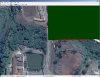
Triangular exclude polygon must overlap edge of 'Appended' FLX3639.shp as seen in this image:
(1) 'Double-click' the border poly-line of the triangular exclude polygon to 'select' it
(2) Right-click the 'selected' triangular exclude polygon, and choose "Properties"
< 'SBuilderX Polygon Properties' dialog opens >
(3)
In 'SBuilderX Polygon Properties' dialog:
(a) {Vector Polygons} Tab > choose:
Type: 10 >
GUID: Exclude All Airport Boundaries > click [
OK] Button
4.) In 'SBuilderX - Save Project As' dialog:
(a) Enter project
file name and type to be saved:
File name: "SNPA_Default_ABP_Exclude.SBP"
Save as type: "SBuilderX (*.SBP)"
(b) Click [
Save] Button
5.) Back in the SBuilderX GUI, with the triangular "Exclude ABP" still 'selected':
(a) Menu > File >
BGL Compile... < 'SBuilderX BGL- Compilation' dialog opens >
(b)
In SBuilderX BGL- Compilation' dialog:
(1) Verify that the "
Terrain Vector" checkbox is checked under "
Select Type of Scenery"; click [
Compile] Button
Next, in the Windows Explorer GUI:
1.) Browse, select, and
Copy this file:
[SBuilderX314 install path]Tools\Shapes\cvx_[SBuilderX project name].BGL
2.) Browse to the 'active' \Scenery sub-folder containing your SNPA custom photo-real BGL made with SBuilderX
A.)
Paste that
cvx_[SBuilderX project name].BGL file into that same \Scenery sub-folder
B.)
Re-name that
cvx_[SBuilderX project name].BGL file within that \Scenery sub-folder
to:
"SNPA_Default_ABP_Exclude.BGL"
Finally, in FSX:
Start an inspection flight at
SNPA; your '
FreeMeshX' terrain should now display properly with
no ABP or flatten.

Hope this helps with the current phase of your project !
 FYI
FYI: More must be done at SNPA ...in Airport Design Editor (aka "ADE") and in SBuilderX; so, I'll post more steps ASAP !
 PS
PS: I will check back on this post shortly to correct any typos & editing errors.

GaryGB