• Which the release of FS2020 we see an explosition of activity on the forun and of course we are very happy to see this. But having all questions about FS2020 in one forum becomes a bit messy. So therefore we would like to ask you all to use the following guidelines when posting your questions:

    • Tag FS2020 specific questions with the MSFS2020 tag.
    • Questions about making 3D assets can be posted in the 3D asset design forum. Either post them in the subforum of the modelling tool you use or in the general forum if they are general.
    • Questions about aircraft design can be posted in the Aircraft design forum
    • Questions about airport design can be posted in the FS2020 airport design forum. Once airport development tools have been updated for FS2020 you can post tool speciifc questions in the subforums of those tools as well of course.
    • Questions about terrain design can be posted in the FS2020 terrain design forum.
    • Questions about SimConnect can be posted in the SimConnect forum.

    Any other question that is not specific to an aspect of development or tool can be posted in the General chat forum.

    By following these guidelines we make sure that the forums remain easy to read for everybody and also that the right people can find your post to answer it.

DXTBMP Alpha Channel

Messages
195
Country
us-ohio
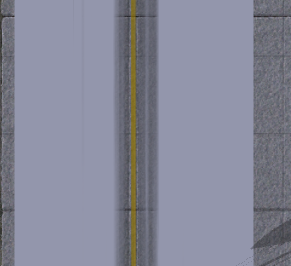
I was having issues with the alpha channel thing in DXTBMP where the alpha channel doesn't "cut out" the white stuff. I have a taxiway texture with some dark markings around it. In DXTBMP, I go to alpha->Create Alpha Template, then refresh alpha. When I load everything in FSX, the white background is still mostly there and the black edges are gone. The yellow center line is fine though.
I have included the original png, transparency preview in DXTBMP, and final view in FSX.
This is probably just a silly mistake since I am relatively new to the DXTBMP program.
shot105.png
shot103.png
shot104.png
 
Last edited:
It sounds like you are following a procedure. If so, you should probably link that. I don't use DXTbmp, but alpha layers control transparency and it's not clear about what white stuff does not get cut out.
 
It sounds like you are following a procedure. If so, you should probably link that. I don't use DXTbmp, but alpha layers control transparency and it's not clear about what white stuff does not get cut out.
There wasn't much of a procedure except for what I mentioned above after guessing and checking in DXTBMP. Also, the "white stuff" is the alpha channel layer since the alpha channel, when exported from GIMP as a jpg, appears white in DXTBMP.
 
If the Alpha Channel is white... then nothing within the texture will be transparent. You mentioned it was a jpg and a png... which is it? Jpg files do not have an alpha channel.

Which was used?
 
If the Alpha Channel is white... then nothing within the texture will be transparent. You mentioned it was a jpg and a png... which is it? Jpg files do not have an alpha channel.

Which was used?
I tried using both Jpg and Png. What file format should I use then that will preserve the alpha channel and can be read by DXTBMP? (The only program I have to create an alpha channel is GIMP at the moment so I can't export as PSD or stuff like that).
 
GIMP can export to a PSD and/ or PNG (keyword in saving or exporting to PSD or PNG files is using the "Export as" option). Either will keep an alpha channel intact.
GIMP also has a plug-in available for DDS file format:

https://code.google.com/archive/p/gimp-dds/downloads

Make sure you get the one for your computer, either 32-bit or 64-bit. You are looking for a zip file. EDIT: 2 things to consider while using GIMP and the plug-in... 1) you will have to merge the layers prior to converting to a DDS. 2) You will also need to flip vertically the texture prior to converting to a DDS as well.

Depending on the version of GIMP (v2.88.22 or the latest v2.10.2) the location to install is:

Drive:\Program Files (x86) \GIMP 2\lib\gimp\2.0\plug-ins (for version 2.88.22)
Drive:\Program Files\GIMP 2\lib\gimp\2.0\plug-ins (for the latest version 2.10.2)

The latest version is for 64-bit OS installation.
 
Last edited:
I haven't tried the DDS extension yet but I have tried exporting as PSD and other formats that keep the alpha channel intact along with merging all layers in GIMP. I have found out a bit about the issue. Apparently, all black areas on the original file including the black edges of the taxiway are labelled for deleting by DXTBMP. Meanwhile, the white (the filler color used by PSD and JPG formats etc. for the alpha channel) and yellow areas are still translucent. As a result, the black edges disappear while the yellow taxiline and "white" alpha channel is retained. I tried importing BMP which labels alpha channel areas as black. However, the black skid marks are deleted as well but the yellow taxiway line is still retained translucent. However, since the "white" areas from the PSD and JPG formats were labelled black in BMP, they were deleted.
 
The only reason to merge the layers into one, is for the DDS plug-in (within GIMP). Since you are not using the plug-in there is not any reason to merge them (especially, when exporting it to a PSD file).

What's your reason for the alpha channel to be used at all? I'm not sure you understand the concept in using an alpha channel, though I could be wrong.

If you would zip up your texture that you are using,... and the alpha channel mask that you are using (within DXTBMP),.. I can take a look at what is happening. I have used DXTBMP in the past, but not much now...

Also,... What format are you saving the texture within DXTBMP?
 
Last edited:
My goal is to create a taxiline with tire marks around it. It needs to have an alpha channel for the taxiway pavement to show beneath it. I do not have an alpha channel mask (I don't know what that is either and if that is required, I have no idea how to make one). I always export these things as DDS5.
Here is the link to the download: https://drive.google.com/open?id=10NMYv6ztGG-tEIatGtZ4ih-x4ct6x57R
I have included all of my versions of the file, including the GIMP and exported DDS files.
 
Try this:

Load up the jpg file in GIMP. After it loads, right-click in the "layers section" and click on "Add Alpha Channel". Then, using the "Rectangular Select Tool" select the black and yellow lines you are wanting to keep. You will then invert the selection (from the Select tab, click on "Invert") and click on the delete button (everything except for the lines). Now Export as a psd file. Close GIMP. Run DXTBMP and convert the psd file to a DXT1.
 
So I found out that the texture converter in MCX can create the alpha channel I wanted without any trouble. This is pretty odd but at least it works. I've also found out that a work around is to (in GIMP) right click on the layer, add a mask, and select, "Transfer Layer's Alpha Channel." Then right click on the layer, select, "show layer mask," and create a new layer from visible. Then either delete or hide the original image so that you are only left with the mask. Then export it and import it into DXTBMP under "import alpha channel." I think that my problem from before was that I didn't quite understand DXTBMP. I thought it would create the alpha channel automatically from the alpha channel saved in the original image.
 
Last edited:
Back
Top