• Which the release of FS2020 we see an explosition of activity on the forun and of course we are very happy to see this. But having all questions about FS2020 in one forum becomes a bit messy. So therefore we would like to ask you all to use the following guidelines when posting your questions:

    • Tag FS2020 specific questions with the MSFS2020 tag.
    • Questions about making 3D assets can be posted in the 3D asset design forum. Either post them in the subforum of the modelling tool you use or in the general forum if they are general.
    • Questions about aircraft design can be posted in the Aircraft design forum
    • Questions about airport design can be posted in the FS2020 airport design forum. Once airport development tools have been updated for FS2020 you can post tool speciifc questions in the subforums of those tools as well of course.
    • Questions about terrain design can be posted in the FS2020 terrain design forum.
    • Questions about SimConnect can be posted in the SimConnect forum.

    Any other question that is not specific to an aspect of development or tool can be posted in the General chat forum.

    By following these guidelines we make sure that the forums remain easy to read for everybody and also that the right people can find your post to answer it.

MSFS20 Problem with SDK converting PNG to DDS

Messages
1,040
Country
ca-ontario
I have a stubbornly annoying problem with my model textures getting converted (by the SDK tools) from PNG (with alpha) to DDS. Here is my original PNG texture, with Alpha transparency, shown in PhotoShop:
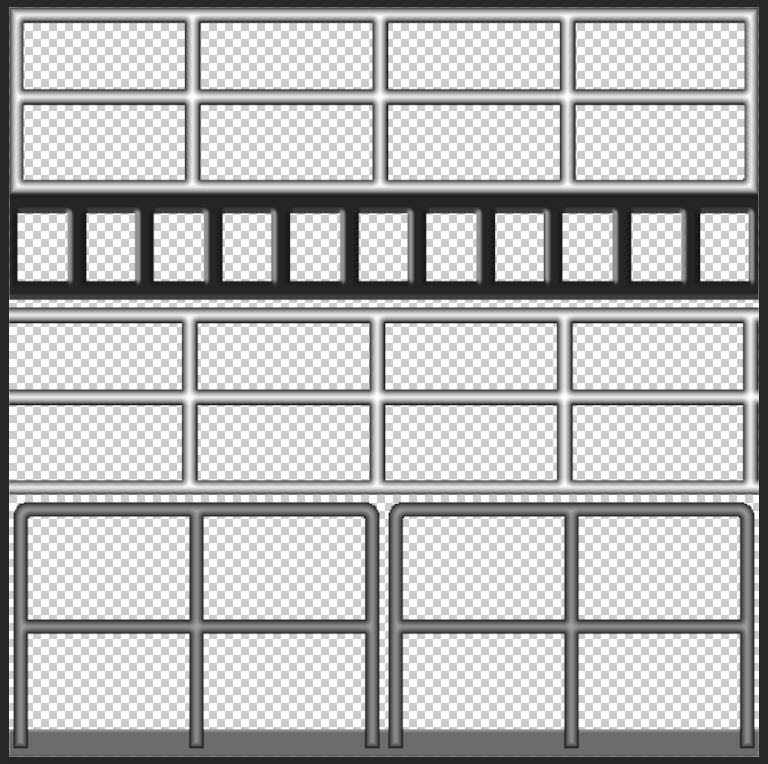
1761858075379.png


And here is what I get when they get converted to DDS (opened in PhotoShop): You will notice 2 white lines (indicated with yellow arrows) where there shouldn't be anything. The DDS Alpha channel is correct, however, RGB channels have this added, for some reason, during the conversion process.
1761858251808.png


While these lines are outside of alpha mask and ordinarily shouldn't pose a problem, I have my UV mapping RIGHT NEXT to the alpha channel border, and the white color is bleeding into my texture. Anyone has any idea why this is happening, and perhaps how to fix it?

I can fix this by moving my UV mapping one pixel away from Alpha channel border, but this is a common texture to MANY objects, and I don't want to adjust UV mapping on all of them.
 
What colour is the original texture? Even though it's transparent in your top picture it will still have a colour associated with it. For example, 255,255,255,0 is white but transparent. 0,0,0,0 is black but transparent. The fourth number controls the transparency. Both will appear the same in your PNG but when converted to DDS you get the results you see.
 
What colour is the original texture? Even though it's transparent in your top picture it will still have a colour associated with it. For example, 255,255,255,0 is white but transparent. 0,0,0,0 is black but transparent. The fourth number controls the transparency. Both will appear the same in your PNG but when converted to DDS you get the results you see.
Hi, Thanks for the response - the original texture? The color is - nothing. Transparent. I save it as PNG with transparency. When I move the PhotoShop color picker over it (the checkered part), the RGB readout blanks out. Is there a PNG editor that will let me see these values?
 
Hi, Thanks for the response - the original texture? The color is - nothing. Transparent. I save it as PNG with transparency. When I move the PhotoShop color picker over it (the checkered part), the RGB readout blanks out. Is there a PNG editor that will let me see these values?
I may have been mistaken about the colour of the transparency.

Can you attach the PNG and DDS files as an attachment (you may need to zip the file)? It doesn't make sense that areas within the fence are black while the strips between them
are white. Ensure that you attach the PNG file that is used by the fspackagetool and not the one you are exporting from Photoshop. There is a possibility that the exporter you are using (what 3D program are you using by the way?) is changing the PNG file when it exports.
 
If you want a quick fix, fill that area with a transparency of only 1. It's near enough to transparent that it won't be seen but it should retain colour information.
 
I may have been mistaken about the colour of the transparency.

Can you attach the PNG and DDS files as an attachment (you may need to zip the file)? It doesn't make sense that areas within the fence are black while the strips between them
are white. Ensure that you attach the PNG file that is used by the fspackagetool and not the one you are exporting from Photoshop. There is a possibility that the exporter you are using (what 3D program are you using by the way?) is changing the PNG file when it exports.
You bet, here it is, PNG from "PackageSources" and DDS from "Packages", I really appreciate your response!

I am using 3DS MAX 2023. What I forgot to mention is, this "effect" is first visible in 3DS MAX, so I would think that's the originator of the "problem". The texture I submit to Max is a PNG with alpha channel, and it looks fine in PhotoShop, but as soon as I view the texture in the MSFS2020 material slot in MAX, I notice the defect:

1761873929399.png


So, basically, it looks as if 3DS MAX introduces the defect when it ingests the texture...
 

Attachments

You bet, here it is, PNG from "PackageSources" and DDS from "Packages", I really appreciate your response!

I am using 3DS MAX 2023. What I forgot to mention is, this "effect" is first visible in 3DS MAX, so I would think that's the originator of the "problem". The texture I submit to Max is a PNG with alpha channel, and it looks fine in PhotoShop, but as soon as I view the texture in the MSFS2020 material slot in MAX, I notice the defect:


So, basically, it looks as if 3DS MAX introduces the defect when it ingests the texture...
There's something wrong with your PNG but I have no idea what it is.

Everything seems to be fine, the transparency appears to be set correctly.

I took your PNG, put it into my model (it looked fine in Blender, I don't use 3DS, there was no white lines or anything) and exported and compiled it but the white lines still showed up in the DDS (just like they did for you).

I then took your PNG, loaded it into Affinity Photo 2 and exported it as a PNG without making any other changes. Reloaded that texture into Blender, exported and compiled and the DDS compiled fine with no white lines.

The only difference between these two procedures is one used your PNG directly and the other used your PNG that I had re-exported from my image editor (Affinity Photo).

I have attached that re-exported PNG and the DDS I compiled using it, try loading that PNG into 3DS Max and see if the white lines show up in the material slot. If they do show up then 3DS Max is doing something, if not then there is something happening when you export your original texture from Photoshop.

If it's photoshop I'd just start a brand new texture and do some quick drawing on it and then test that in 3DS Max. If that works then I'd copy across the parts of the original texture.

I think I can confidently say that it isn't an issue with the packagetool as I was able to produce the correct DDS using the re-exported PNG file.
 

Attachments

There's something wrong with your PNG but I have no idea what it is.

Everything seems to be fine, the transparency appears to be set correctly.

I took your PNG, put it into my model (it looked fine in Blender, I don't use 3DS, there was no white lines or anything) and exported and compiled it but the white lines still showed up in the DDS (just like they did for you).

I then took your PNG, loaded it into Affinity Photo 2 and exported it as a PNG without making any other changes. Reloaded that texture into Blender, exported and compiled and the DDS compiled fine with no white lines.

The only difference between these two procedures is one used your PNG directly and the other used your PNG that I had re-exported from my image editor (Affinity Photo).

I have attached that re-exported PNG and the DDS I compiled using it, try loading that PNG into 3DS Max and see if the white lines show up in the material slot. If they do show up then 3DS Max is doing something, if not then there is something happening when you export your original texture from Photoshop.

If it's photoshop I'd just start a brand new texture and do some quick drawing on it and then test that in 3DS Max. If that works then I'd copy across the parts of the original texture.

I think I can confidently say that it isn't an issue with the packagetool as I was able to produce the correct DDS using the re-exported PNG file.
Your texture worked - MAX didn't import artefact lines!!

So - wow - it is PhotoShop that is exporting it. An industry standard... producing crap. I will do as you suggested, create something similar from scratch and see what it gives me.

Thanks again!!
 
Ok - as you previously suggested, I added a layer at the very bottom of my master PS file, black at 1% transparency (not noticeable), and that solved it - the white lines are gone. All looks as it should!!

Thanks!!
 
Back
Top