- Messages
- 27
- Country

Make sure FS9 is at the location you want and running, so when you start the project will be at the same level as the airport. This way you wont have to enter the height of the objects above sea level.
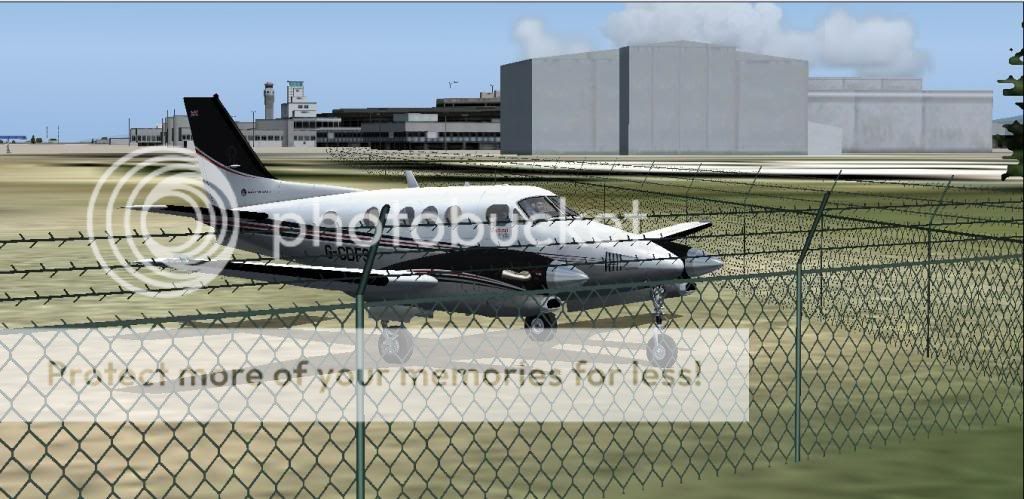
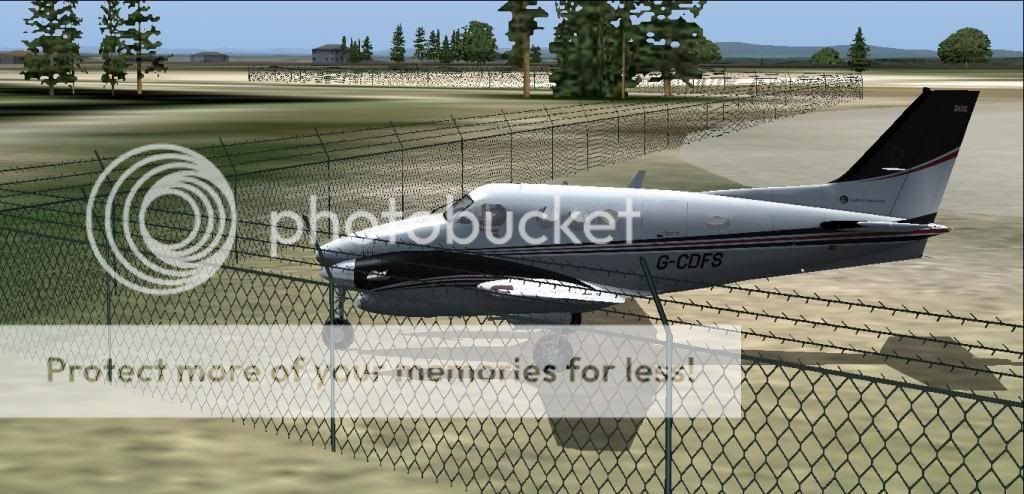
Adding fences to FS9.
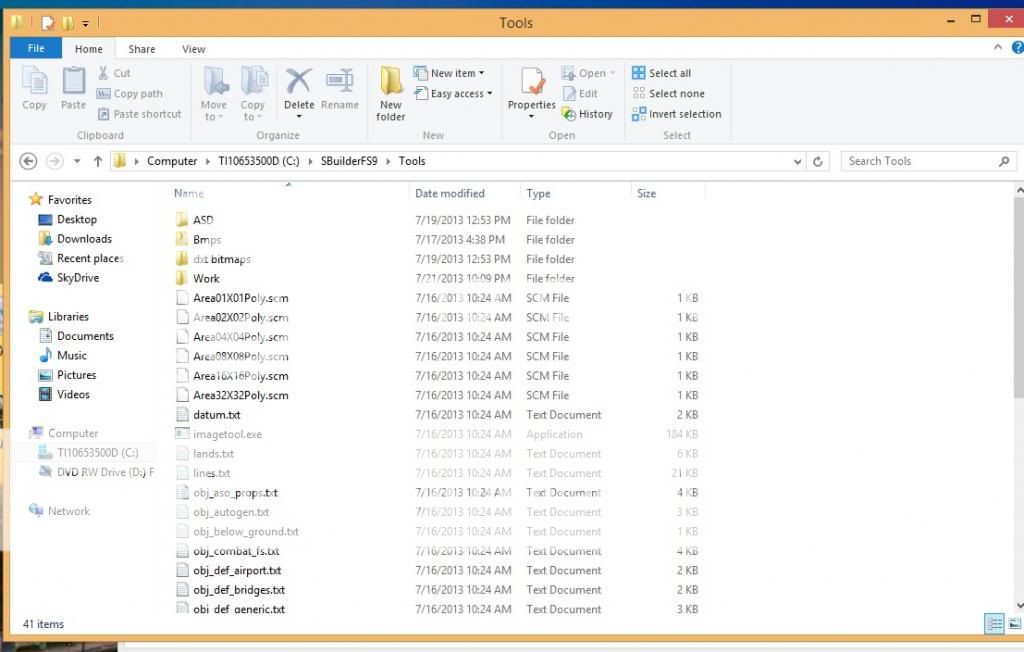
Edit folders in SBuilder, if Adding new objects. Go to Tools folder in SBuilder and Copy the ASD to the ASD folder in the tools folder and the DXT bitmaps into the tools folder. Now you can create new objects. These will be under Macros. Also go to Add-on texture folder in FS9 and add the textures from the bitmap folder. Any bitmap can go there.
Fences and Walls
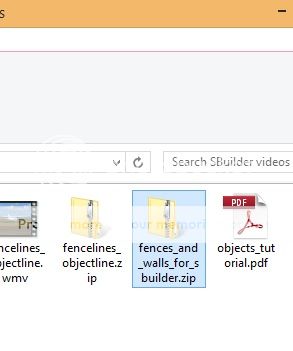
Open SBuilder and set up the path for compiling to FS9
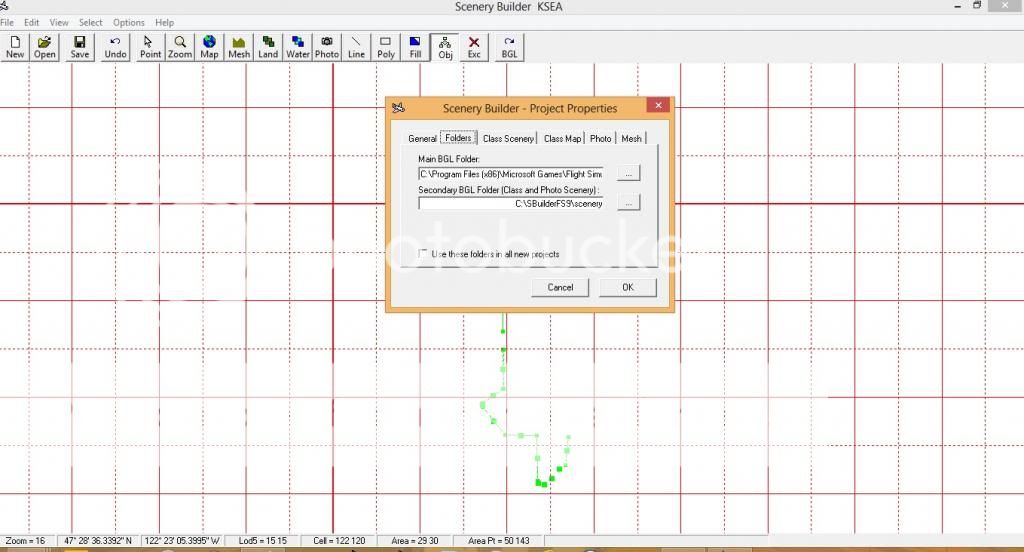
Go to files properties and in the main BGL set the path to the Add-on scenery
and the second BGL folder can be in SBuilder.
I am adding Fences under Macros. The height of the fence looks normal at 3 meters.
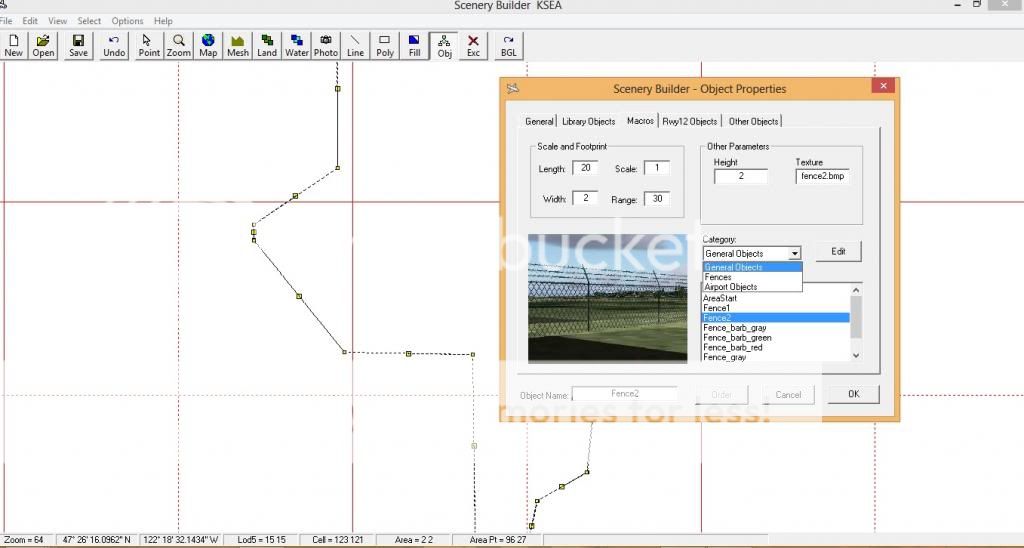
You can stretch the size of the fence, the length and width. You can also enter the size. The 3 dots on the top is the front. The middle dot on the top, not the center, will rotate the object. The dots on the corners will adjust the size. The middle dot will move the object and you can adjust the properties by right click.


When you are ready to compile, add new object, click on menu, select all objects.
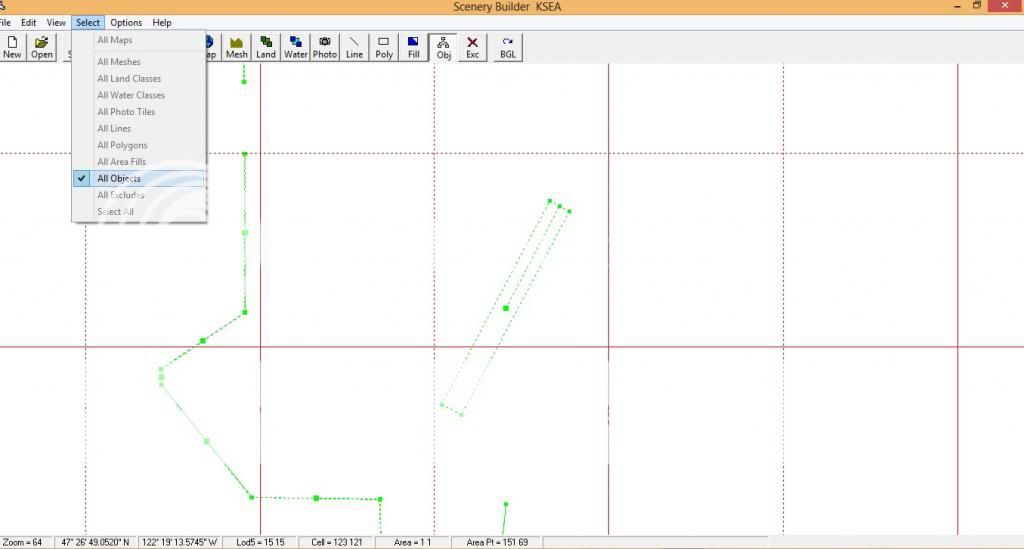
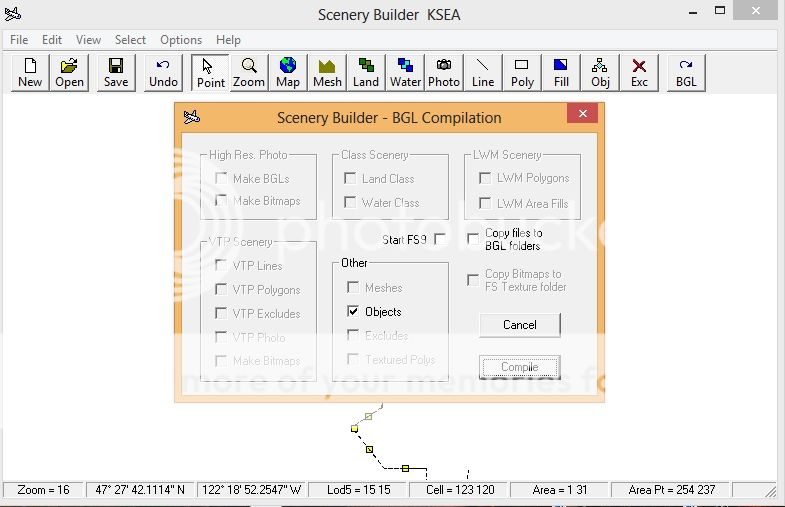
Then select File, BGL compilation, click on pop-up copy files to BGL folders then click compile. Before compiling, close FS9.
You can use the aircraft in FS9 and top view to put the fence where you want it. Use slew mode (Y) key to move around in FS9 to the locations for the fence. In SBuilder on the menu click view, show aircraft. You will see a small x appear, that is the aircraft in FS9. When you move the aircraft in FS9 this x will move and you will know exactly where you are.
If you still have questions, I will try my best to answer them.

Adding fences to FS9.
Edit folders in SBuilder, if Adding new objects. Go to Tools folder in SBuilder and Copy the ASD to the ASD folder in the tools folder and the DXT bitmaps into the tools folder. Now you can create new objects. These will be under Macros. Also go to Add-on texture folder in FS9 and add the textures from the bitmap folder. Any bitmap can go there.
Fences and Walls
Open SBuilder and set up the path for compiling to FS9
Go to files properties and in the main BGL set the path to the Add-on scenery
and the second BGL folder can be in SBuilder.
I am adding Fences under Macros. The height of the fence looks normal at 3 meters.
You can stretch the size of the fence, the length and width. You can also enter the size. The 3 dots on the top is the front. The middle dot on the top, not the center, will rotate the object. The dots on the corners will adjust the size. The middle dot will move the object and you can adjust the properties by right click.
When you are ready to compile, add new object, click on menu, select all objects.
Then select File, BGL compilation, click on pop-up copy files to BGL folders then click compile. Before compiling, close FS9.
You can use the aircraft in FS9 and top view to put the fence where you want it. Use slew mode (Y) key to move around in FS9 to the locations for the fence. In SBuilder on the menu click view, show aircraft. You will see a small x appear, that is the aircraft in FS9. When you move the aircraft in FS9 this x will move and you will know exactly where you are.
If you still have questions, I will try my best to answer them.