• Which the release of FS2020 we see an explosition of activity on the forun and of course we are very happy to see this. But having all questions about FS2020 in one forum becomes a bit messy. So therefore we would like to ask you all to use the following guidelines when posting your questions:

    • Tag FS2020 specific questions with the MSFS2020 tag.
    • Questions about making 3D assets can be posted in the 3D asset design forum. Either post them in the subforum of the modelling tool you use or in the general forum if they are general.
    • Questions about aircraft design can be posted in the Aircraft design forum
    • Questions about airport design can be posted in the FS2020 airport design forum. Once airport development tools have been updated for FS2020 you can post tool speciifc questions in the subforums of those tools as well of course.
    • Questions about terrain design can be posted in the FS2020 terrain design forum.
    • Questions about SimConnect can be posted in the SimConnect forum.

    Any other question that is not specific to an aspect of development or tool can be posted in the General chat forum.

    By following these guidelines we make sure that the forums remain easy to read for everybody and also that the right people can find your post to answer it.

Again BSOD machine check exception

Messages
153
Country
switzerland
I recently started again having BSODs when loading a complex model into MCX. I just drag a sim.cfg onto the MCX window. The event window only shows about 2-3 lines then the screen freezes before something is shown. A short wind up from the ventilators.
Everything is frozen then. I have to wait until the Blue Screen comes up.

I have my CPU overclocked, the gpu not. I can run P3D5.1 HF1 for hours without overheating. CPU temperature is from 45 to 72°C.

I didn´t change hardware recently. Everything seems to sit firmly.

It´s only with MCX. I use the development actualy version 1.5.0.0.846103e. A good example to try is \Program Files\Lockheed Martin\Prepar3D v5\SimObjects\GroundVehicles\74K Mobile Mooring Platform. I could only load it once, all other attempts led to a BSOD.

"Machine Check Exception" could be everything from OC to drivers to hardware. It there a way to narrow it down?
 
Hi,

I just tried to load this model on my machine and that worked fine (I loaded it from P3D v4.5, as I don't have v5 installed here).

Does it crash only with this specific model or with almost any model?

Another thing to try would be to see if the crash also happens if you enable the simple shader (icon with the teapot).
 
I think always with rather complex models. It doesn´t crash with simple models. Will try your suggestions but sending this message right now, before the BSOD ;-)

Dan
 
Ok, i tried the teapot unselected, BSOD. Then I set my clock rate to 4.5 instead of 5.0 and it works. I can also set the complex shader on and load it again with complex shaders on.

So it´s a matter of clock rate and MCX. I know no other program which can trigger a BSOD so steadily. But what is different with MCX. Priority is normal, never changed this.

I checked temperatures at 4.5 GHz and it goes from 35°C up to 65°C. It seems not to be temperature which is far from 100°C also with 5.0 GHz, but maybe voltage.


BTW: I just wonder, where in the P3D world this model is used. It seems to be for blimps.

Dan
 
Hello:

Asus AI Tweaker III does a good semi-automated overclock, and includes other related utilities which help achieve stable (sub-max) overclocks.

Asus Fan Expert may prove useful as well in setting up a demand-based dynamic fan boost to parallel CPU turbo boost during intensive operations.

GaryGB
 
Last edited:
Hi Gary
I have an ASUS board, so I will look what AI Tweaker can do for me. I tried it before an was not convinced.
Dan

P.S.
Off topic:
It is still the same. AI Automatic Tuning will lead to BSODs and Windows damages without finding a successful clock rate and RAM speed setting. The AI software does not recognize the coolers of my housing, only the cpu cooling, a vaio pump is found but since this only worked on the CPU fan plug, it is interpreted as fan, which is not optimal.

MCX:
I set my clockrate to 49 and with this can load the "74K Mobile Mooring Platform without BSOD" observing a cpu temperature increase to 85°C. I guess it peaked 100°, when I was at 50 clock rate. So hardware related, I get too hot.
Software related, this shouldn´t be. I can load Prepar3D at 53 to 59°C. I don´t get why MCX goes up like crazy for a simple file operation? It´s the ultimate stress test for a system ;-). I think only Arno knows, what the program does loading a mdl file. I think it´s more than just reading the disk.

Dan
 
Last edited:
While it is probably true that MSI Afterburner has been more popular in the last few years, the most recent version III of AI Tweaker is improved.


After activating Intel "XMP" mode in the BIOS, AI Tweaker III's "Dual Intelligent Processors 5" utility does the rest from Windows.


After the (stable) CPU and DDR4 RAM overclock is established, one can then run the Fan Expert utility as well.


Configuring one's GPU overclock and cooling is of course, done via separate (ex: NVidia) software.

However, one might wonder if you may have a NVidia driver stability issue with MCX involving OpenGL and/or OpenCL and CUDA ? :scratchch


I hope you also have the success that I have had with recent versions of these utilities. :)

GaryGB
 
Last edited:
Hi,

MCX doesn't do anything directly with your CPU. So I don't understand why the clock speed would matter for the BSOD. On slower machines it just runs slower.
 
Hi Gary
I have an ASUS board, so I will look what AI Tweaker can do for me. I tried it before an was not convinced.
Dan

P.S.
Off topic:
It is still the same. AI Automatic Tuning will lead to BSODs and Windows damages without finding a successful clock rate and RAM speed setting. The AI software does not recognize the coolers of my housing, only the cpu cooling, a vaio pump is found but since this only worked on the CPU fan plug, it is interpreted as fan, which is not optimal.

MCX:
I set my clockrate to 49 and with this can load the "74K Mobile Mooring Platform without BSOD" observing a cpu temperature increase to 85°C. I guess it peaked 100°, when I was at 50 clock rate. So hardware related, I get too hot.
Software related, this should't be. I can load Prepar3D at 53 to 59°C. I don´t get why MCX goes up like crazy for a simple file operation? It´s the ultimate stress test for a system ;-). I think only Arno knows, what the program does loading a mdl file. I think it´s more than just reading the disk.

Dan

Hi,

MCX doesn't do anything directly with your CPU. So I don't understand why the clock speed would matter for the BSOD. On slower machines it just runs slower.

One might wonder whether MCX, which IIRC does not use multiple cores (but is coded to run on either 32-Bit or 64-Bit Windows aka "AnyCPU"), ...may still trigger the internal "turbo boost" mechanism in multi-core CPUs when loading complex 3D models.

AFAIK, an increasingly frequent issue with recent multi-core CPUs is overheating under load as all cores (...even unused ones ! ) are internally and automatically boosted (by firmware in BIOS or via hardware drivers ?) to a higher clock rate, independent from any user-initiated overclock.

This quickly overheats the CPU case and contents, (should) trigger the internal temperature probe, and if the CPU does not promptly throttle to back off of the internal (automatic) turbo boost, this may subsequently cause a BSOD.

While this reportedly does happen with other recent CPU dies, there are numerous such 'MCE' reports with I7 9700K CPUs on Windows 10. :alert:

Also, be aware of the potentially over-looked (...and/or unwanted ?) Turbo Boost activity discussed in these threads:

https://www.google.com/search?q=I7+(9700K+Turbo+Boost+Intel+SpeedStep&ei=hzihYLW4K4a4tQaqgI_ICw&oq=I7+(9700K+Turbo+Boost+Intel+SpeedStep&gs_lcp=Cgdnd3Mtd2l6EAwyBQgAEM0CMgUIABDNAjIFCAAQzQI6BwgAEEcQsANQjhpYjhpgvyloAXACeACAAaMBiAGDApIBAzEuMZgBAKABAaoBB2d3cy13aXrIAQjAAQE&sclient=gws-wiz&ved=0ahUKEwj1l9PGwM7wAhUGXM0KHSrAA7kQ4dUDCA0


Reportedly, this scenario contributes to higher base CPU core temperatures, and 'may' occur depending on what Windows Power Profile is used.


"...workloads that are naturally lower in power or lightly threaded may take advantage of headroom in the form of increased core frequency."


https://etd.auburn.edu/bitstream/handle/10415/4985/Thesis_Pavan, Uppu.pdf?sequence=2&isAllowed=y

"Intel® Turbo Boost technology provides the Core i7 the capability of maximizing core frequency while ensuring that the processor does not go above the upper-limits of temperature, power, and current. When lower power-consuming applications execute on a subset of active cores (cores in core C0 or core C1) with inactive cores (cores in core C3 or core C6) present in the package, the applications may take advantage of the additional power headroom provided by the inactive cores in the form of increased core frequency."

"Power Consumption and thermal emergencies in multi-core processors are now a major bottleneck due to increased heat dissipation caused by running intensive programs on densely integrated systems. High temperatures lead to unreliable and short lifespan of electronic devices. Currently, mechanisms are already in place so that whenever CPU reaches a cut-off temperature, the BIOS increases fan speed and conducts thermal throttling (adjusts the clock duty cycle and/or reduces the operating frequency/voltage). The problem of thermal control is exacerbated with the new Intel turbo boost, which opportunistically raises frequency leading to temperature spikes. Thus, there is increased need to control temperature at a set point via dynamic voltage and frequency scaling. Fortunately, modern CPUs provide P-States to operate it at various voltage-frequency pairs"


"Power Saving Features: SpeedStep and C1E

SpeedStep and C1E work to lower your CPU voltage and multiplier when the system isn't busy. This lowers your power usage, and therefore, the heat that your processor produces.

However, when you're overclocked, you're running at higher speeds than default, which usually requires more voltage, so if your voltage is dropped too low for the speed it's running at, this could cause your system to become unstable."


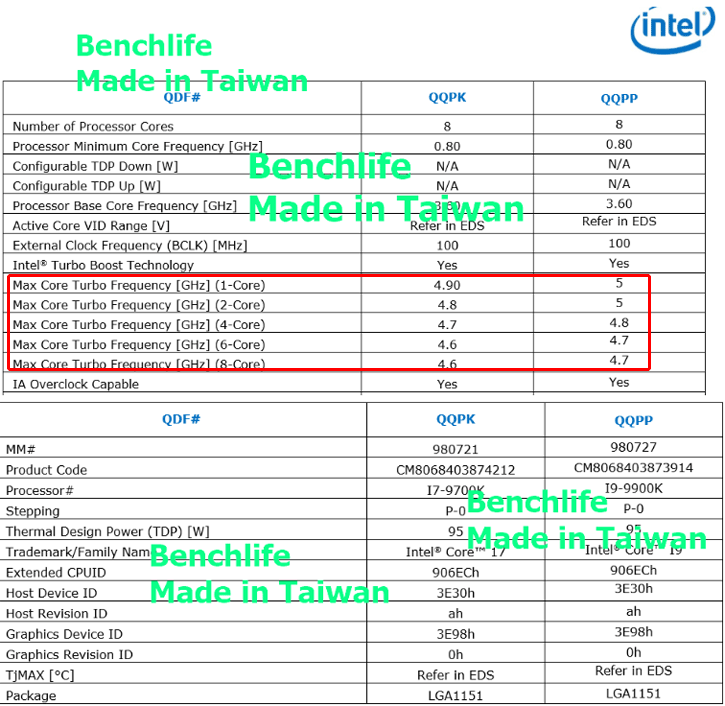
"With turbo boost /speed step, etc., engaged, 4.6 GHz would be the clock speed achieved under an all-core tasking load....(4.7 GHz for 5-6 cores loaded, 4.8 GHz for 3 or 4 cores loaded, and 4.9 GHz for one or two cores at peak tasking/clock speed)

In Balanced power mode within Windows Power Management, and all chipset drivers installed, during periods of very low CPU load such as loafing at the browser, playing solitaire, etc., most will see clock speeds of as low as 800-1200 MHz to conserve power, and careful observation (in HWMonitor or CPU-Z display) will show clock speeds boosting to 2000, 2300, 3500, or even 4900 MHz, and subsequently reducing back down to as low as 800 MHz, many times over the course of a minute or two....and all perfectly normal...

If your mainboard has an MCE (Multi Core Enhancement), then all 8 cores will scale as high as 4.9 GHz even under a heavy load, at the expense of increased power draw and warmer temps...; but, in Balanced Power mode, you should it bounce around in clock speeds similarly as described earlier."


Intel SpeedStep is 'supposed' to down-clock when task load is low, or the CPU is otherwise "Idle" ...to keep CPU temperatures in a specified range. :pushpin:


Ideally, if all is working as intended, it will be like 'Curly' of the 3 Stooges used to say: "I'm trying to think, but nothing happens !" :laughing:

http://www.mediafire.com/file/5pklznovrya8fm9/Curly.wav/file

http://www.mediafire.com/file/k25qyglqmfwm9it/Curly-Nyuk.WAV/file


FYI: This is how I prefer to "manage" my computer's self-serving BIOS routines, as well as that of Microsoft's 'agenda' via Windows 10: ;)


Assuming one:

* is using 4-pin PWM fans instead of 3-pin 'case' (aka "housing") fans

* is not using a water cooling unit attached to the motherboard pin header instead of fans

* has enabled BIOS fan and temperature monitoring

* has checked this Asus Fan detection issue:


...if unable to resolve fan issues via a menu /<F6> key in the BIOS as documented on Pages 11 and 12 in what, IIUC, is your motherboard BIOS manual:


...until one finds a utility that allows total control over all case / CPU / chipset cooling fans, and works 'properly' with Windows 10 Power Profiles,
rather than globally disabling Turbo Boost (which is purportedly internally and automatically factored into any manual under / over -clocking):


"The Core i7 9700K is an eight-core and eight-thread processor (that's right no Hyper threading) with a boost up to 4.9 GHz on one single-core. However, it can turbo at 4.6 GHz maximum on all cores."


...one may have to choose which CPU core on which to run- or NOT to run- ...MCX. :oops:


If MCX is still only a (1) CPU core application, one may try to set a profile for it using ex: Process Lasso to assign CPU priority to only (1) core. :idea:

One may also set a profile for MCX using ex: Process Lasso to enforce a lower 'limit' to its CPU priority on the only (1) assigned CPU core.


PS: Arno, is MCX assigning CPU 'Affinity Mask' to all available CPU cores ...as a result of your recent performance enhancement coding ? :scratchch

GaryGB
 
Last edited:
Hi Gary,

MCX does use multiple threads, importing and exporting run on different threads than the user interface. So I think it can use multiple cores as well (I let the dotnet framework handle all those details).

As for your last question, I don't set any CPU affinity or whatever.
 
Hi Gary, very comprehensive explanation of the problem. I guess it is something specific to my 9700 cpu. I had all cores on 5 GHz. So if they try turbo mode, it´s over the top. With 4.9 I can still fly perfectly but have a little headroom.

I´m still reading your explanation, unable to get it all in one time. ;-).

Thanks

Dan
 
Hi Dan:

Glad to see you found a stable overclock while endeavoring to maximize performance in the future; there is always more for us all to learn. :)

P.S.
Off topic:
It is still the same. AI Automatic Tuning will lead to BSODs and Windows damages without finding a successful clock rate and RAM speed setting. The AI software does not recognize the coolers of my housing, only the cpu cooling, a vaio pump is found but since this only worked on the CPU fan plug, it is interpreted as fan, which is not optimal.

BTW: I assume by "vaio" above, you were referring to an 'AIO' (aka "All-In-One") liquid cooler for the CPU ? :rolleyes:

The reason I ask is, AIO's may also boost their current demand under load, and may cause a greater stress to the thermal limits of the motherboard Voltage Regulator Modules (aka "VRM's"), when connected there for power ...instead of off a PSU peripheral cable.

Note that on Page 1-17 in the Asus manual for your ROG STRIX Z390-F GAMING motherboard, the pin header for:

* AIO_PUMP is only rated for 1 Amp.

* W_PUMP is only rated for +3 Amp.


AFAIK, most high performance AIO's boost power demands beyond 3.x amps under a CPU perf. load, and temps. may trigger CTD's / BSOD's. :oops:


IMHO, it is best to power a AIO liquid cooler 'water pump' via a PSU Molex / SATA connector adapter instead of motherboard AIO / Water pin headers:

CAVEAT: Always follow manufacturer's instructions for each connected PC part ! :teacher:


https://forum.corsair.com/v2/showthread.php?t=190702 :idea:

https://www.amazon.com/CRJ-4-Pin-Mo...R8KS/ref=dp_prsubs_1?pd_rd_i=B07DPXR8KS&psc=1

https://www.amazon.com/CRJ-4-Pin-Sleeved-Power-Adapter/dp/B0711CR7HV


If possible, separate any sensors for RPM / Temp off from the AIO so that it may be connected to the data input pin headers of the motherboard, so that the intended PWM data I/O can still be processed / utilized by Windows Power Profile management and BIOS / AI overclock software.

Which AIO (manufacturer / model) are you currently using with your I7 9700K CPU ? :scratchch


PS: Some related info:


GaryGB
 
Last edited:
BTW: I assume by "vaio" above, you were referring to an 'AIO' (aka "All-In-One") liquid cooler for the CPU ? :rolleyes:
Oh these Sony Vaio 😂 . Yes of course AIO. I gave it a try today, connected the AIO to the AIO connector and the BIOS refused to boot, since it missed the CPU cooler. :rolleyes:

Actually I use the 1802 BIOS on my board. I did not find a setting to disable the CPU cooler. Maybe it´s automatic if a AIO is connected but does not work here. I use the Arctic Liquid Freezer II - 360, which has only one cable and connector for pump and radiators. Maybe the mobo doesn´t recognize this?

I also tried to rearange the case ventilators. I have a preinstalled PWM hub in the Phanteks Enthoo Evolv ATX case. It is connected to power on one side and on the other to the CPU cooler. They wrote on the cable, to plug it there.
From the hub all three case vents were connected. So I get only one speed indication. If I have this hub alone on the cpu connector, the system knows that´s not a cpu cooler. Only when I plug the AIO there, it lets me boot. Now I have the AIO at the CPU_FAN, the PWM Hub at the CPU_OPT and the rear fan on CHA_FAN2.
Any idea, what I could do better?

Dan
 
Hi Dan:

The Arctic Liquid Freezer II - 360 has a small cooling fan built into the AIO CPU mount which reportedly only cools the motherboard chipset, and it is possible when that AIO is connected to the CPU_FAN your BIOS is regarding that as having satisfied the CPU cooling requirement ? :scratchch


IIUC, your AIO combined current load does not exceed PWM header AMP limits on your ASUS ROG_STRIX_Z390-F_GAMING motherboard model:


0.08 + 0.225 = 0.305 AMPs


While it's a nice touch for a case to include a PWM hub, it may be considered 'optional' (...unless one has more fans than on-'Mobo' PWM headers).

https://www.phanteks.com/assets/manuals/PH-ES515E_Western.pdf (See Page 26)


AFAIK, you have only (3) case fans, so I would instead connect fans directly to ASUS ROG_STRIX_Z390-F_GAMING motherboard PWM headers.


Be certain to enable in the BIOS, those PWM headers you connected any of your fans to ...so they can be monitored via the BIOS (See Page 55)

That configuration should allow fans to be individually monitored / controlled as to RPM (...and ASUS Fan Expert can work properly as well). ;)


Note that on Page 1-17 in the Asus manual for your ROG STRIX Z390-F GAMING motherboard:


...the PWM pin header for:

* AIO_PUMP is only rated for 1 Amp

* W_PUMP is only rated for +3 Amp

...and that they are intended to run at full speed at all times, thus not being allowed the option of 'variable' speed.


"Q-Fan Controlled" PWM headers shown on Page 1-17 in the Asus manual for your ROG STRIX Z390-F GAMING motherboard are 'variable' speed.


BTW: DO NOT USE EXT_FAN pin header: :alert:

"The EXT_FAN connector is only for the fan extension card. For more details on the fan extension card, please refer to the 'To install Fan Extension Card' section in this guide."

Note that the optional Asus "FAN Extension card" is proprietary, and also connects to Node connector (12-1 pin NODE) (See page 1-18)

https://dlcdnets.asus.com/pub/ASUS/.../E14842_ROG_STRIX_Z390-F_GAMING_UM_V2_WEB.pdf


I hope this info helps a bit more. :)

GaryGB
 
Last edited:
I hope this info helps a bit more.
Yes, indeed. Today I took another attempt and I got the AIO at at the AIO_Pump and the two front fans on the hub, which is on CHA_FAN1 (no longer CPU_FAN, like suggested by Phanteks case builder.
Since the fron fans run together, I put them on the hub and also pluged one of them in plug1, which is measured. The rear fan is on CHA_FAN2. I also found the option to disable the CPU_FAN and CPU_OPT, to avoid the BIOS halting the system.
After running AI Suite FAN Tuning, my system is more silent during start of P3D5. I will see, how it does spool up with the sim running.

Coretemp new FAN profile.jpg


Thanks for all your inputs. It´s really a big step forward for me in understanding these things.

Dan
 
Back
Top