-
Which the release of FS2020 we see an explosition of activity on the forun and of course we are very happy to see this. But having all questions about FS2020 in one forum becomes a bit messy. So therefore we would like to ask you all to use the following guidelines when posting your questions:
- Tag FS2020 specific questions with the MSFS2020 tag.
- Questions about making 3D assets can be posted in the 3D asset design forum. Either post them in the subforum of the modelling tool you use or in the general forum if they are general.
- Questions about aircraft design can be posted in the Aircraft design forum
- Questions about airport design can be posted in the FS2020 airport design forum. Once airport development tools have been updated for FS2020 you can post tool speciifc questions in the subforums of those tools as well of course.
- Questions about terrain design can be posted in the FS2020 terrain design forum.
- Questions about SimConnect can be posted in the SimConnect forum.
Any other question that is not specific to an aspect of development or tool can be posted in the General chat forum.
By following these guidelines we make sure that the forums remain easy to read for everybody and also that the right people can find your post to answer it.
You are using an out of date browser. It may not display this or other websites correctly.
You should upgrade or use an alternative browser.
You should upgrade or use an alternative browser.


- Messages
- 463
- Country

This usually happens when the sim can't find the textures either because the textures are in a different location or there is an error in the texture config files.
As Chris Eve suggested, a clue as to which helo we are talking about could help others to see if it is a repeatable issue or just a problem with your sim.
As Chris Eve suggested, a clue as to which helo we are talking about could help others to see if it is a repeatable issue or just a problem with your sim.
Yes of course, thank you both, here is the link:
Simviation: Microsoft Flight Simulator Addons
Simviation: Microsoft Flight Simulator Addons
simviation.com
- Messages
- 463
- Country
I DL'd the file, checked for viruses, unpacked it, saw that it was an exe file so checked that for nasties again and then installed to a dummy folder on my desktop to see what went where. It looked like a regular type of install so I moved the files over to my P3D v4.5 install and everything works as it should with the correct textures on every model.
I can only think that the installation process got corrupted on your box Tuna37. Try installing to a new folder on your desktop and then manually move the files/folders into FSX.
I can only think that the installation process got corrupted on your box Tuna37. Try installing to a new folder on your desktop and then manually move the files/folders into FSX.
Thank you so much Chris and Tako, for the time you are spending on this! (and so sorry for causing you computer to re-boot, Chris!)
I note, though Tako, that you had a successful dl into P3D....? Are versions for FSX and P3D automatically compatible? Could that be the explanation?
Also that it's "freeware", but connected to a worthy charity and that maybe someone has had a dig at it for that!?
In anycase the dl I made came with an installation app and I didn't even get to see all the files to do a manual install!
I also could not get into the docs website...
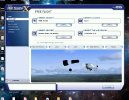
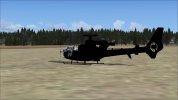
Am attaching a couple of screen grabs to show you what the heli looks like on my system.
Many thanks again.
I note, though Tako, that you had a successful dl into P3D....? Are versions for FSX and P3D automatically compatible? Could that be the explanation?
Also that it's "freeware", but connected to a worthy charity and that maybe someone has had a dig at it for that!?
In anycase the dl I made came with an installation app and I didn't even get to see all the files to do a manual install!
I also could not get into the docs website...
Am attaching a couple of screen grabs to show you what the heli looks like on my system.
Many thanks again.
Attachments
- Messages
- 463
- Country
Native FSX aircraft (not port-overs from FS2004/FS9) will work fine in P3D up to version 4.0. After version 4.0 (i.e. v4.5 and beyond) P3D became a 64 bit simulator rather than being a 32 bit simulator like FSX. With v4.5 up to v5.4 most FSX aircraft will still work but you may start to run into issues with textures, gauges, specially coded functions etc. As far as I know very few FSX aircraft (if any) will work in v6.0 and beyond, I bought P3D v4.5 as it gave me the performance I was looking for and the best compatibility with FSX.I note, though Tako, that you had a successful dl into P3D....? Are versions for FSX and P3D automatically compatible? Could that be the explanation?
To do a manual install follow these steps:In anycase the dl I made came with an installation app and I didn't even get to see all the files to do a manual install!
1. Uninstall what you have now from the Gazelle installer to make sure you are starting clean.
2. Create a new folder on your desktop called 'FSX Dummy' or similar.
3. Navigate to your FSX location then find and copy the 'FSX.exe' file.
4. Paste the 'FSX.exe' file into your 'FSX Dummy' (or whatever you named it) folder.
5. Run the Gazelle installer and when it gets to the screen that lets you decided where it's going to install to re-direct it to your desktop 'FSX Dummy' (or whatever) folder.
6. The installer will now create two folders inside your 'FSX Dummy' folder, 'effects' and 'simobjects'.
7. Open the 'FSX Dummy\effects' folder and copy the 'fx_vclight_grn.fx' file then paste that file into your 'Your drive location...\FSX\effects' folder.
8. Open the 'FSX Dummy\simobjects' folder and then the 'FSX Dummy\simobjects\Rotorcraft' folder and copy the 'ukmil_gazelle' folder.
9. Paste the 'ukmil_gazelle' folder into your 'Your drive location...\FSX\simobjects\rotorcraft' folder.
The manual installation is now complete and you should see the Gazelle with the correct textures in the aircraft selection menu and in the sim.
NOTE: The above process can be applied to almost any installer as long as you move the newly created files/folders from the 'FSX Dummy' folder to their exact same folders within FSX.
Once you have the Gazelle displaying correctly you can delete everything except the 'FSX.exe' file from the 'FSX Dummy' folder so that it is ready to be used again.
I hope the above works for you, if it doesn't there is something else amiss as those steps worked fine for me.
Last edited:
- Messages
- 463
- Country
From what I can gather SP2 was free whereas Acceleration had to be bought and included extra features.
From a Google search I gleaned the following info:
Acceleration is an expansion pack that includes all the functionality of Service Pack 2 (SP2) plus additional aircraft, missions, and scenery, essentially making it a superior, content-rich version of the SP2 update. If you installed Acceleration, you have all SP2 features built-in; you do not need to install SP2 separately.
How to Determine Which You Have:
Check for Acceleration: Look for the F/A-18 Hornet, EH-101 helicopter, or P-51 Mustang in your aircraft list. If they are there, you have Acceleration.
Check Startup Screen: Upon launching the game, the splash screen will explicitly say "Microsoft Flight Simulator X: Acceleration".
Check Add/Remove Programs: Look in your Windows installed programs list for "Acceleration Expansion Pack."
If you do not have the Acceleration-specific aircraft or missions, you are likely running the base game with SP2 (or SP1) installed.
From a Google search I gleaned the following info:
Acceleration is an expansion pack that includes all the functionality of Service Pack 2 (SP2) plus additional aircraft, missions, and scenery, essentially making it a superior, content-rich version of the SP2 update. If you installed Acceleration, you have all SP2 features built-in; you do not need to install SP2 separately.
How to Determine Which You Have:
Check for Acceleration: Look for the F/A-18 Hornet, EH-101 helicopter, or P-51 Mustang in your aircraft list. If they are there, you have Acceleration.
Check Startup Screen: Upon launching the game, the splash screen will explicitly say "Microsoft Flight Simulator X: Acceleration".
Check Add/Remove Programs: Look in your Windows installed programs list for "Acceleration Expansion Pack."
If you do not have the Acceleration-specific aircraft or missions, you are likely running the base game with SP2 (or SP1) installed.
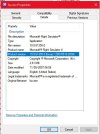
If you right-click on your FSX.EXE file and choose Properties | Details - Product Version it will tell you there if it's SP1 or SP2 or not at all (I don't have Acceleration so I don't know how it reports itself)How can I check if I've done "Acceleration" and/or SP2?
The installation that crashed for me was SP1, the install details specify SP2, so my mistake there ... I'll try again on SP2 later.

Windows > Control Panel > Programs and Features ...will show this entry when you have FSX Acceleration installed:
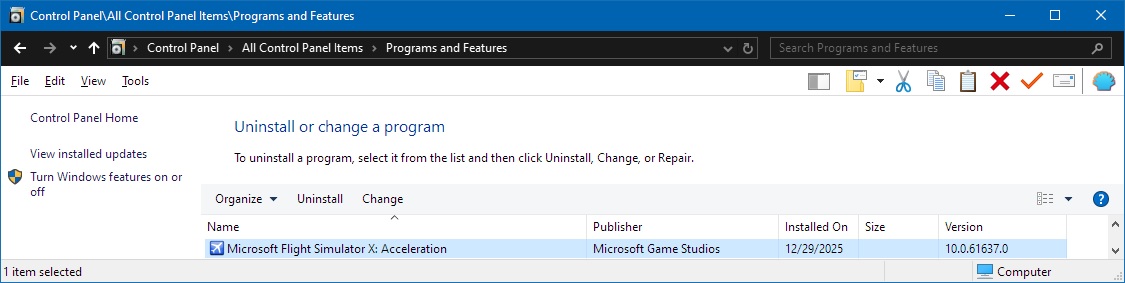
Note that the Item listed and its icon may change with successive installation of either Acceleration or SP2 on top of an existing FSX RTM install.
https://www.fsdeveloper.com/forum/threads/read-first-fsx-sdk-installation-all-versions.8285/
GaryGB
Note that the Item listed and its icon may change with successive installation of either Acceleration or SP2 on top of an existing FSX RTM install.
https://www.fsdeveloper.com/forum/threads/read-first-fsx-sdk-installation-all-versions.8285/
GaryGB
Once more, thank you all for spending this time!
Here is where I am today:
PS Chris: The startup screen is no longer transparent, but has a black; non-textured heli....
Here is where I am today:
- Acceleration is not installed: verified in program files
- I have the "Gold" edition of FSX
- It refuses to install the acceleration dvd that came in the box because "it needs to have the english language version" of FSX to install (I live in France)
- I HAVE the English (American) version - as seen in FSX properties!!!!!!!
PS Chris: The startup screen is no longer transparent, but has a black; non-textured heli....
OK ... well, I've installed the Gazelle in my FSX SP2 and it "works", after a fashion, but the texturing, on some of the models at least, is a right mess :-
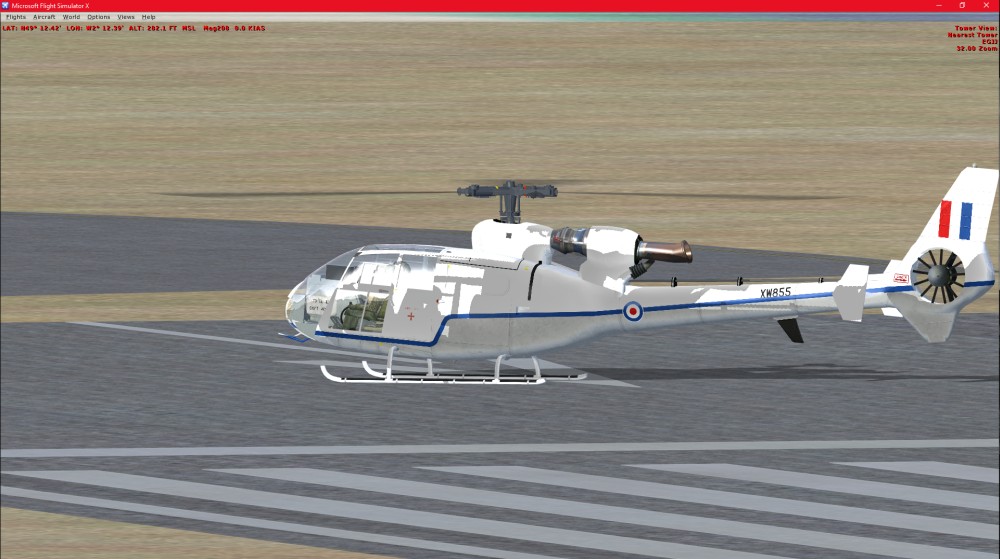
If you're just sitting in it and flying, it maybe OK, but if you're after external views, it may still need some work!
Helicopters really aren't "my bag", so I'll not be spending any time on it, but at least I've established that it will load in FSX SP2
Fine tuning might have been covered in the documentation, but that doesn't seem to be available
PS :- Setting "Aircraft casts shadows on itself" to Off in Options | Settings | Display | Aircraft tidies things up a bit
If you're just sitting in it and flying, it maybe OK, but if you're after external views, it may still need some work!
Helicopters really aren't "my bag", so I'll not be spending any time on it, but at least I've established that it will load in FSX SP2
Fine tuning might have been covered in the documentation, but that doesn't seem to be available
PS :- Setting "Aircraft casts shadows on itself" to Off in Options | Settings | Display | Aircraft tidies things up a bit
Last edited:


Not sure I've got any more ideas
My FSX is the "De Luxe Edition"
My 'demo' installation shows the same version number as an unpatched install from the original DVDs
My SP1 and SP2 installations show different details, as shown in the screen-dumps below.
I'm confused as to why your installation doesn't show the Service Pack update if you haven't installed the Acceleration feature, which apparently includes both service packs, as detailed here https://en.wikipedia.org/wiki/Microsoft_Flight_Simulator_X
My FSX is the "De Luxe Edition"
My 'demo' installation shows the same version number as an unpatched install from the original DVDs
My SP1 and SP2 installations show different details, as shown in the screen-dumps below.
I'm confused as to why your installation doesn't show the Service Pack update if you haven't installed the Acceleration feature, which apparently includes both service packs, as detailed here https://en.wikipedia.org/wiki/Microsoft_Flight_Simulator_X