• Which the release of FS2020 we see an explosition of activity on the forun and of course we are very happy to see this. But having all questions about FS2020 in one forum becomes a bit messy. So therefore we would like to ask you all to use the following guidelines when posting your questions:

    • Tag FS2020 specific questions with the MSFS2020 tag.
    • Questions about making 3D assets can be posted in the 3D asset design forum. Either post them in the subforum of the modelling tool you use or in the general forum if they are general.
    • Questions about aircraft design can be posted in the Aircraft design forum
    • Questions about airport design can be posted in the FS2020 airport design forum. Once airport development tools have been updated for FS2020 you can post tool speciifc questions in the subforums of those tools as well of course.
    • Questions about terrain design can be posted in the FS2020 terrain design forum.
    • Questions about SimConnect can be posted in the SimConnect forum.

    Any other question that is not specific to an aspect of development or tool can be posted in the General chat forum.

    By following these guidelines we make sure that the forums remain easy to read for everybody and also that the right people can find your post to answer it.

MSFS20 Is there a way to get Rid of Noise Texture on Projected Mesh?

Messages
53
Country
nigeria
So i imported my groundpolygon as a projected mesh however im having this issue where MSFS applies a sort of overlay texture above this ground Poly.Usually this isnt an issue when its asphalt or concrete but i have things like drains in the groundpoly so when this texture is applied over it ,the whole texture just Looks weird.Ive tried selecting all the different surface types, sleected draw before Marking_Text,Changed the priority as well but its still the same ,Any ideas?
This is how it looks when i import it as a non projected mesh which is how its supposed to look
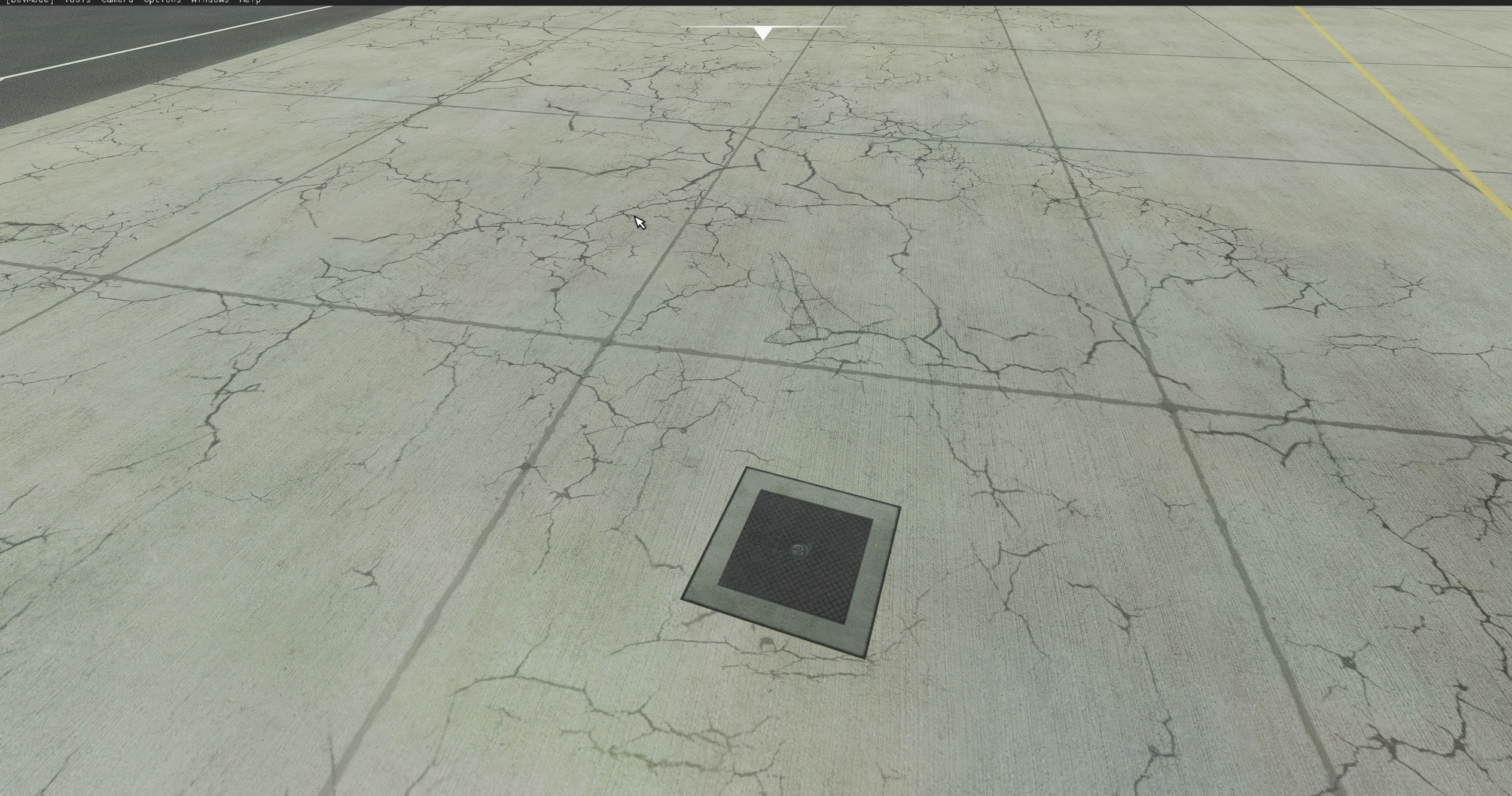
bandicam 2020-10-31 21-18-02-437.jpg


This is how it looks when imported as a projected Mesh

bandicam 2020-10-31 21-17-32-035.jpg
 

Attachments

  • bandicam 2020-10-31 21-18-02-437.jpg
    bandicam 2020-10-31 21-18-02-437.jpg
    648.4 KB · Views: 523
Yes but this is different . my settings are on ultra . if you look closely youll see the sim actually applies another texture over the projected mesh itself .Thats what I'm trying to get rid of

Also your problem that you linked have you tried UV mapping it in blender and exporting from there instead of 3ds max ?. I had that issue once and I did that and it worked for me . it didn't work on another scenery tho so it's hit and miss
 
.......@Risuali45,

Regarding your issue, I have looked into it closely and have decided not to pursue projected mesh ground polygons because of it.

I have been designing hi-res ground textures for years and am proficient in the required material properties for importing into FS2020, but in my view the end result is not satisfactory when using the ProjectedMesh technique.

As you say, when projected, the texture is “diluted” by the default “Detail” texture used by the Sims engine, selecting a different material type only changes the appearance slightly, but your custom ground texture will still have this washed out “Asphalt” look bleeding through.
There appears to be no setting that is able to turn the default “Detail” texture off.

I have noticed that when using XML for the creation of Airport Surfaces, along with the “DrawSurface=True” parameter, there is a “DrawDetail=True” parameter.
I am presuming this refers to adding the default surface type “Detail” material to the Texture.
I have found that even if you change the parameter to “DrawDetail=False” it makes no difference to what the chosen hard surface will look like in the Sim.

Asobo need to include a “Detail” map which can be aligned to a Surface Material, without it having any visual detail, ie blank.
In FSX, I seem to remember, they used two default “Detail” ground texture and if you used an enhancement package like REX for example, REX would replace those for “Blank Detail” textures so that the default detail would not interfere with their replacement ground textures.

In Short, we need Asobo to address this.
 
.......@Risuali45,

Regarding your issue, I have looked into it closely and have decided not to pursue projected mesh ground polygons because of it.

I have been designing hi-res ground textures for years and am proficient in the required material properties for importing into FS2020, but in my view the end result is not satisfactory when using the ProjectedMesh technique.

As you say, when projected, the texture is “diluted” by the default “Detail” texture used by the Sims engine, selecting a different material type only changes the appearance slightly, but your custom ground texture will still have this washed out “Asphalt” look bleeding through.
There appears to be no setting that is able to turn the default “Detail” texture off.

I have noticed that when using XML for the creation of Airport Surfaces, along with the “DrawSurface=True” parameter, there is a “DrawDetail=True” parameter.
I am presuming this refers to adding the default surface type “Detail” material to the Texture.
I have found that even if you change the parameter to “DrawDetail=False” it makes no difference to what the chosen hard surface will look like in the Sim.

Asobo need to include a “Detail” map which can be aligned to a Surface Material, without it having any visual detail, ie blank.
In FSX, I seem to remember, they used two default “Detail” ground texture and if you used an enhancement package like REX for example, REX would replace those for “Blank Detail” textures so that the default detail would not interfere with their replacement ground textures.

In Short, we need Asobo to address this.
Thank you very much for the reply .I guess ill send a messae to Zendesk maybe they can change this behaviour in a future update as its really annoying
 
.......@Risuali45,

Regarding your issue, I have looked into it closely and have decided not to pursue projected mesh ground polygons because of it.

I have been designing hi-res ground textures for years and am proficient in the required material properties for importing into FS2020, but in my view the end result is not satisfactory when using the ProjectedMesh technique.

As you say, when projected, the texture is “diluted” by the default “Detail” texture used by the Sims engine, selecting a different material type only changes the appearance slightly, but your custom ground texture will still have this washed out “Asphalt” look bleeding through.
There appears to be no setting that is able to turn the default “Detail” texture off.

I have noticed that when using XML for the creation of Airport Surfaces, along with the “DrawSurface=True” parameter, there is a “DrawDetail=True” parameter.
I am presuming this refers to adding the default surface type “Detail” material to the Texture.
I have found that even if you change the parameter to “DrawDetail=False” it makes no difference to what the chosen hard surface will look like in the Sim.

Asobo need to include a “Detail” map which can be aligned to a Surface Material, without it having any visual detail, ie blank.
In FSX, I seem to remember, they used two default “Detail” ground texture and if you used an enhancement package like REX for example, REX would replace those for “Blank Detail” textures so that the default detail would not interfere with their replacement ground textures.

In Short, we need Asobo to address this.
That was a nice writing.
What about custom painted lines or textures?.
I'm getting jaggy edges no matter what i do or resolution i try.
 
sim actually applies another texture over the projected mesh itself .Thats what I'm trying to get rid of
Devs are aware of this. Currently there is no way around removing, or adding a custom detail texture on top of your projected mesh texture. They said it's planned but allot of work and there is no ETA.
 
That was a nice writing.
What about custom painted lines or textures?.
I'm getting jaggy edges no matter what i do or resolution i try.
It's the same issue. I'm very disapointed that my high res ground textures don't show up as they should. This should be addressed as soon as possible. I've been even thinking of using actual mesh for some ground textures but that would also have other issues.
 
It's the same issue. I'm very disapointed that my high res ground textures don't show up as they should. This should be addressed as soon as possible. I've been even thinking of using actual mesh for some ground textures but that would also have other issues.
What ive ended up doing is instead of importing as a projected mesh .What i did is i flattened the Apron where these markings will be , Imported the marking as a regular object,disabled snap to ground and cast shadows and then placed the object about 0.01 meters of the ground,Its not perfect but at least the marking will be in the highest resolution
 
What ive ended up doing is instead of importing as a projected mesh .What i did is i flattened the Apron where these markings will be , Imported the marking as a regular object,disabled snap to ground and cast shadows and then placed the object about 0.01 meters of the ground,Its not perfect but at least the marking will be in the highest resolution
That's a good workaround for now until they fix this issue.
 
What ive ended up doing is instead of importing as a projected mesh .What i did is i flattened the Apron where these markings will be , Imported the marking as a regular object,disabled snap to ground and cast shadows and then placed the object about 0.01 meters of the ground,Its not perfect but at least the marking will be in the highest resolution
That's exactly what i have been doing for the past few days. Working with 3d models for markings and small stuff and using 0.01mm (sim tool).

 
Hi, Im also at the stage of creating some custom markings at my airport. I decided to go this way:


It looks pretty good on the ground. The only downside I see is that you need to have a unique texture for each custom mark. But since Im doing a small airport (its just like 8 textures), its a way to go for me. at the moment.
 

Attachments

  • 1605172493316.png
    1605172493316.png
    3.3 MB · Views: 474
Have they still not fixed the issue of disabling this issue?
If I have a projected mesh it places another normal and detail over the top and removes a lot of detail.
I have seen other's work where this doesn't happen, but I can't see how to do this.
 
Back
Top