

- Messages
- 777
- Country

Rather than hijack this thread I am starting a new one.
In that topic Robystar mentioned frustrations caused by placing multiple copies of an element, which is easy to do in SU.
Here we start with a simple .15m square that could represent any element. We want 3 of them, evenly spaced, with an overall outside dimension of 5m. Note this works with any selected element(s), not just groups or components.
Start with the Tape Measure tool (T) and double click on the edge of the component to create a guideline to assist in the placing of the copies.

Now click on the perpendicular edge and drag to begin placing another guideline. Click anywhere and type 5, then Enter and the guideline will be placed 5m from the starting point.

Obviously, if you are not working in meters you would use the appropriate dimension.
Using the Move tool (M) first click on the Ctrl key and SU will create a copy of the element, not move it. Click on the corner of the original that you want copied to the crossing of the guide lines.

Drag the component over to the guidelines and SU will Snap to the intersection.

In lieu of placing the second guideline you could also drag the copy to any point on the first guideline and type in the 4.85 and achieve the same result.
We now have the 2 outer elements placed, to get the one in the middle simply type 2/ and SU will place the 3rd element in the exact middle of the outer 2.
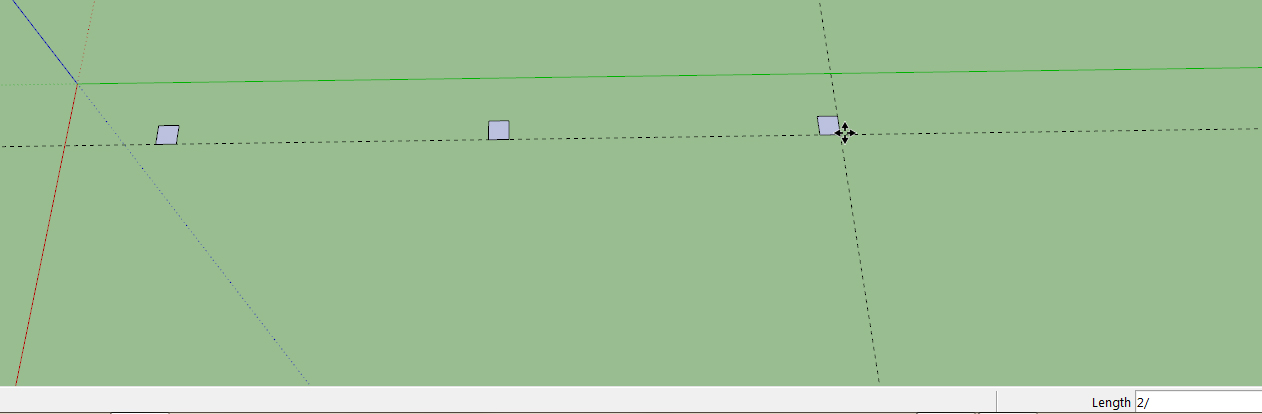
You can use any number you like, not just 2.
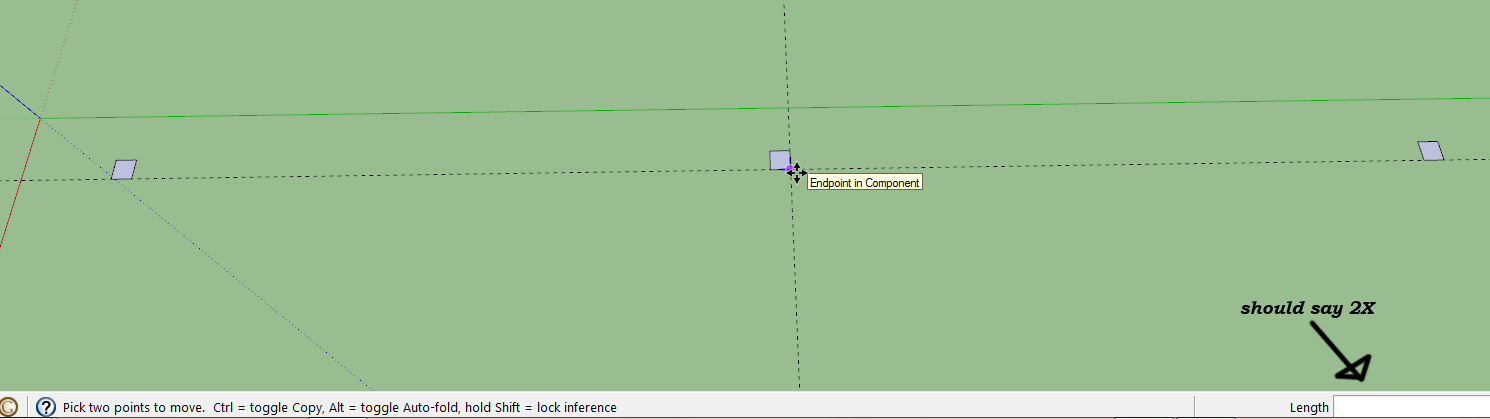
Here I used 2x instead of 2/ for a different result...
I hope this helps others speed up their workflow in Sketchup.
cheers,
Lane
In that topic Robystar mentioned frustrations caused by placing multiple copies of an element, which is easy to do in SU.
Here we start with a simple .15m square that could represent any element. We want 3 of them, evenly spaced, with an overall outside dimension of 5m. Note this works with any selected element(s), not just groups or components.
Start with the Tape Measure tool (T) and double click on the edge of the component to create a guideline to assist in the placing of the copies.
Now click on the perpendicular edge and drag to begin placing another guideline. Click anywhere and type 5, then Enter and the guideline will be placed 5m from the starting point.
Obviously, if you are not working in meters you would use the appropriate dimension.
Using the Move tool (M) first click on the Ctrl key and SU will create a copy of the element, not move it. Click on the corner of the original that you want copied to the crossing of the guide lines.
Drag the component over to the guidelines and SU will Snap to the intersection.
In lieu of placing the second guideline you could also drag the copy to any point on the first guideline and type in the 4.85 and achieve the same result.
We now have the 2 outer elements placed, to get the one in the middle simply type 2/ and SU will place the 3rd element in the exact middle of the outer 2.
You can use any number you like, not just 2.
Here I used 2x instead of 2/ for a different result...
I hope this helps others speed up their workflow in Sketchup.
cheers,
Lane


