• Which the release of FS2020 we see an explosition of activity on the forun and of course we are very happy to see this. But having all questions about FS2020 in one forum becomes a bit messy. So therefore we would like to ask you all to use the following guidelines when posting your questions:

    • Tag FS2020 specific questions with the MSFS2020 tag.
    • Questions about making 3D assets can be posted in the 3D asset design forum. Either post them in the subforum of the modelling tool you use or in the general forum if they are general.
    • Questions about aircraft design can be posted in the Aircraft design forum
    • Questions about airport design can be posted in the FS2020 airport design forum. Once airport development tools have been updated for FS2020 you can post tool speciifc questions in the subforums of those tools as well of course.
    • Questions about terrain design can be posted in the FS2020 terrain design forum.
    • Questions about SimConnect can be posted in the SimConnect forum.

    Any other question that is not specific to an aspect of development or tool can be posted in the General chat forum.

    By following these guidelines we make sure that the forums remain easy to read for everybody and also that the right people can find your post to answer it.

MSFS20 PBR materials for MSFS2020

Messages
14
Country
us-texas
OK I am using Blender v3.6.18 with the blender plugin provided by the current SDK v1.3.3 and works fine. I have made a simple model with basic texture and successfully imported into msfs2020.
I now want to learn to texture (simple tile to start) with PBR materials. I have Paintshop Pro but their doesnt seem to be a way to import a PBR image into a channel. Do most just import premade PBR images to the materials channels in blender?
Looking for some direction thanks.
 
Here's some links:
https://www.fsdeveloper.com/forum/threads/tools-to-convert-downloaded-texture-sets-for-msfs.458370/
https://www.fsdeveloper.com/forum/threads/some-useful-pbr-resources.448540/

The differences with MSFS and texture sources is that MSFS uses COMP textures (ORM) and sources usually have occlusion, roughness, and metallic as separate textures that need to be converted to a singular ORM texture. Also, many online PBR textures use an opengl normal texture, and that needs to b converted to DirectX normal texture. There are tools to combine textures to make a COMP texture, and to create a DirectX normal.

Once the textures are made for MSFS, they can be entered into the appropriate material slots in the Blender export addon.
 
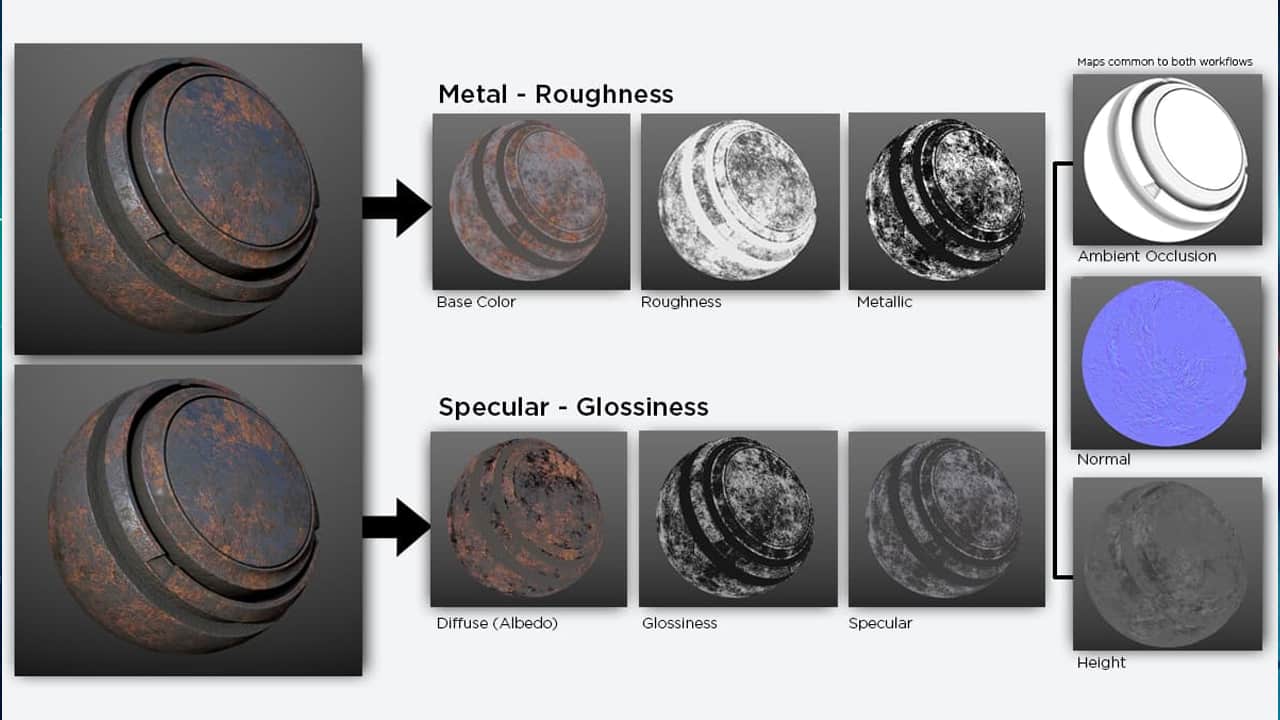
its Ambient Occlusion. Roughness and Metallic you want to use for creating the msfs Comp or 'Composite PBR' file (using the Metallic PBR workflow not the Specular PBR workflow)
just the first reference i found on it in the sdk
IMPORTANT! Previously QUALITYHIGH was always set for AO/Roughness/Metal (COMP) textures by default, but this was changed in a recent update.

and only a single rgb color channel from each pbr file (this is critical), i like HangerStudio's ARM = RGB memory trick
AO = Red
Roughness = Green
Metallic = Blue

it is possible to convert these manually with some apps, HangerStudio did a write up a long while ago about doing this with gimp
i rem it fondly since its what finally got me to understand what the comp was so i still have it saved
i take no credit for this work and its not really a suggested method of creating comps, just a great example of the actual bits you need

but a much better and easier solution is using a custom preset for substance or quixel


Attachments

Last edited:

Adobe Substance 3D Texturing is $25 a month and Adobe Substance 3D Collection is US$59.99/mo. I assume I only need the first? not cheap​

 
Last edited:
Substance Painter is a good solution but too much expensive for our hobby.

Many others solutions exists:
- ArmorPaint (15$ for this payware) => https://github.com/armory3d/armortools
- Quixel a plugin for Adobe PhotoShop
- PBR Painter (20$) which is a Blender plugin that I use since 2 years and which is very powerful => https://superhivemarket.com/products/pbr-painter

I have tested each solution and I must have written several posts on these solutions on FSDeveloper.
The better software IMO is PBR Painter which is always in developement is very well supported by his author.

Each solution provide all the needed textures to compose the COMP in post-creation. For this I use a freeware ORM-Maker v1.1 (https://www.fsdeveloper.com/forum/threads/tools-to-convert-downloaded-texture-sets-for-msfs.458370) which compose automaticly this file if you enter the AO, Roughness and Metalic textures in the GUI.
 
i use Quixel Mixer, its a free alternative to Substance

its a bit harder to use , and doesnt have the wizards etc - but it has lots of free textures/materials etc and does the same thing
i suggest getting it thru epic, i think it may be them that hosts the free 'smart' materials that are pretty good

EDIT
ok they really run you around the block trying to sell megascans there for it
dl from here
then when you run it, sign in with an Epic games login (optional maybe, its what used to get you extra free materials)
im not sure you can still get those free, but you can 'buy' that stuff later (its not required afaik)
at least i hope that still works
 
Last edited:
I use PhotoShop for all my texturing needs. Making COMP textures is fairly straightforward - I cut and paste the Roughness and Metallic maps straight into the channel slots. Remember - the "old" specular maps are basically inverted roughness maps, and reflectance maps CAN be used as metallic maps (although they are not the same). I use free and excellent NVIDIA Texture Tools Exporter (standalone desktop app) to make normal maps. Someone suggested PhotoShop's normal filter, but I stay away from it because it adds some weird "puffiness" into the normal maps which I couldn't get rid of.
 
Misho, you're earning too much. Last year the Adobe Photographer's Package was £9.07p per month, which I was happy enough with. Three months ago they told me that they were increasing the price to £20.00p per month (a 110% increase!), so I told them what they could do with that idea. I switched to a combination of GIMP (free but definately has its moments), Canva Affinity (free, but not yet really ready for prime time) and various standalone utilities for generating normal and metallic maps. Not quite as convenient as having it all in one place, but a h£ll of a lot cheaper than feeding the greed of the Adobe monster.
 
I use PhotoShop for all my texturing needs. Making COMP textures is fairly straightforward - I cut and paste the Roughness and Metallic maps straight into the channel slots. Remember - the "old" specular maps are basically inverted roughness maps, and reflectance maps CAN be used as metallic maps (although they are not the same). I use free and excellent NVIDIA Texture Tools Exporter (standalone desktop app) to make normal maps. Someone suggested PhotoShop's normal filter, but I stay away from it because it adds some weird "puffiness" into the normal maps which I couldn't get rid of.
they can be inserted without error, but i might have to debate 'they work'
if your using Specular maps they will not control the lighting and shadows correctly, they (asobo) specify the Metallic Workflow maps for a reason (AO/Roughness/Metal = the COMP file, anything else is not correct)
using them will cause the lighting and shadowing to not work right (generally they will look good in direct sunlight but show either real shinny or real flat in the shade with no shadowing effect)

ambient occlusion is Not the same as the specular occlusion and specular reflective maps are Not the same as Metallic maps
even the specular roughness map is different than the one created using the metallic workflow

they may 'work after a fashion' but your not taking full advantage of the advanced graphics this game is capable of using

some reference material that tries to explain some of the difference in these files

ive used gimp to make normal maps, it works and has some control over the amount of influence
needs a plugin from here https://code.google.com/archive/p/gimp-normalmap/#!
load any color file (albedo) and go to Filters -> Generic -> Normal to create the normal map for that aldebo
 
Last edited:
they can be inserted without error, but i might have to debate 'they work'
if your using Specular maps they will not control the lighting and shadows correctly, they (asobo) specify the Metallic Workflow maps for a reason (AO/Roughness/Metal = the COMP file, anything else is not correct)
using them will cause the lighting and shadowing to not work right (generally they will look good in direct sunlight but show either real shinny or real flat in the shade with no shadowing effect)

ambient occlusion is Not the same as the specular occlusion and specular reflective maps are Not the same as Metallic maps
even the specular roughness map is different than the one created using the metallic workflow

they may 'work after a fashion' but your not taking full advantage of the advanced graphics this game is capable of using

ive used gimp to make normal maps, it works and has some control over the amount of influence
needs a plugin from here https://code.google.com/archive/p/gimp-normalmap/#!
load any color file (albedo) and go to Filters -> Generic -> Normal to create the normal map for that aldebo
re: Specular, I meant, by definition, Roughness is inverse of specular. So, I use "old" specular map (FSX, P3D, whatever), invert it, and stick that into the green channel on the COMP texture. I don't use any specular properties (if there is such a thing in the MSFS202x material). As for metallic, yes, I mentioned reflectance is not the same as metallic, but it is "close enough" for my needs.
 
OK I am using Blender v3.6.18 with the blender plugin provided by the current SDK v1.3.3 and works fine. I have made a simple model with basic texture and successfully imported into msfs2020.
I now want to learn to texture (simple tile to start) with PBR materials. I have Paintshop Pro but their doesnt seem to be a way to import a PBR image into a channel. Do most just import premade PBR images to the materials channels in blender?
Looking for some direction thanks.
There are 2 general ways of using textures. One is using tiled textures. There are actually thousands of PBR texture tile sets available in the internet. They usually are separated into albedo, AO, roughness (or smoothness), metallic, and normal.
There are 2 problems with these tiles (sometimes). Most sets have openGL normals. These need some alteration to make them DirectX normals. There are apps to do this. The other problem is that none of these tile sets have a COMP texture. These are ORM (occlusion, roughness, and metallic) combined into one texture in the rgb channels. There are apps to create the comp texture form these separate downloaded texture sets.

The other way is to use a non-tiling texture, and that would be custom from a photo or invented to cover a whole section of a specific model. And there are apps for that.
 
For tiled textures, here's a couple of apps. First, Comp_Creator.zip This will allow the loading of ao, roughness, and metallic images, and output a COMP file (you'll need to rename that file). The second, is DirectX_Normal_Converter.zip This one will load a normal texture, and try to determine if it is openGL or DirectX, and output what it thinks is DirectX. I use the term 'thinks' loosely.

Both exe's are made with python code with the help of GROK, Elon, Musk's AI, and converted to executables. Let me know if they don't run, or just suck.
 
I understand the COMP (RGB combined A,R,M,) but what is the normal?

from the aiassist. sums it well
A normal map is a texture used in 3D graphics to simulate surface details like bumps and grooves without increasing the model's polygon count.
It modifies how light interacts with the surface, creating the illusion of depth and detail on simpler geometric shapes

its great for making 'rivets' appear to be there, without any actual geometry for example
 
OK so MSFS needs ALBEDO, NORMAL and a COMP (AO, Roughness, Metallic). Now just where to plug them in. Base Color = ALBEDO, RGB = COMP, Normal= NORMAL and we dont use the rest. Am I on the right track? Thanks
BlenderPlug.png
 
Last edited:
the rest you dont need for basic models yes, technically you can get a model in game with only the albedo- it just wont look very good
the others are used in specific cases, like emissives are used for lighting, detail and blend maps can be used for wear or grime etc
but yes those are the only ones you normally need, and the ones needed for practically every material
 
Back
Top