• Which the release of FS2020 we see an explosition of activity on the forun and of course we are very happy to see this. But having all questions about FS2020 in one forum becomes a bit messy. So therefore we would like to ask you all to use the following guidelines when posting your questions:

    • Tag FS2020 specific questions with the MSFS2020 tag.
    • Questions about making 3D assets can be posted in the 3D asset design forum. Either post them in the subforum of the modelling tool you use or in the general forum if they are general.
    • Questions about aircraft design can be posted in the Aircraft design forum
    • Questions about airport design can be posted in the FS2020 airport design forum. Once airport development tools have been updated for FS2020 you can post tool speciifc questions in the subforums of those tools as well of course.
    • Questions about terrain design can be posted in the FS2020 terrain design forum.
    • Questions about SimConnect can be posted in the SimConnect forum.

    Any other question that is not specific to an aspect of development or tool can be posted in the General chat forum.

    By following these guidelines we make sure that the forums remain easy to read for everybody and also that the right people can find your post to answer it.

Recreating Light pole wash

Messages
47
Country
netherlands
I'm trying to recreate the light wash of the standard Lightpost in FSX.

I made my own model of a light pole (correct name: Floodlight) with Sketchup. Got it in MCX into FSX through ADE.

The only thing I'm having a problem with is the light wash texture on the ground. All the other texture ain't a problem.

I made a poly on the ground and the material is the wash texture of the stock light pole. In MCX I linked it with the material editor to the actual texture files. Also looking at settings as discussed here(http://www.fsdeveloper.com/forum/threads/33mo-leaming-field-lighting-progress.19286/).

I've now got a square which has opacity as I can see through it in FSX(bit of asphalt and concrete apron visible in the picture). But not the "wash" the stock lights have(on the left in the picture). It also flickers which i need to fix.
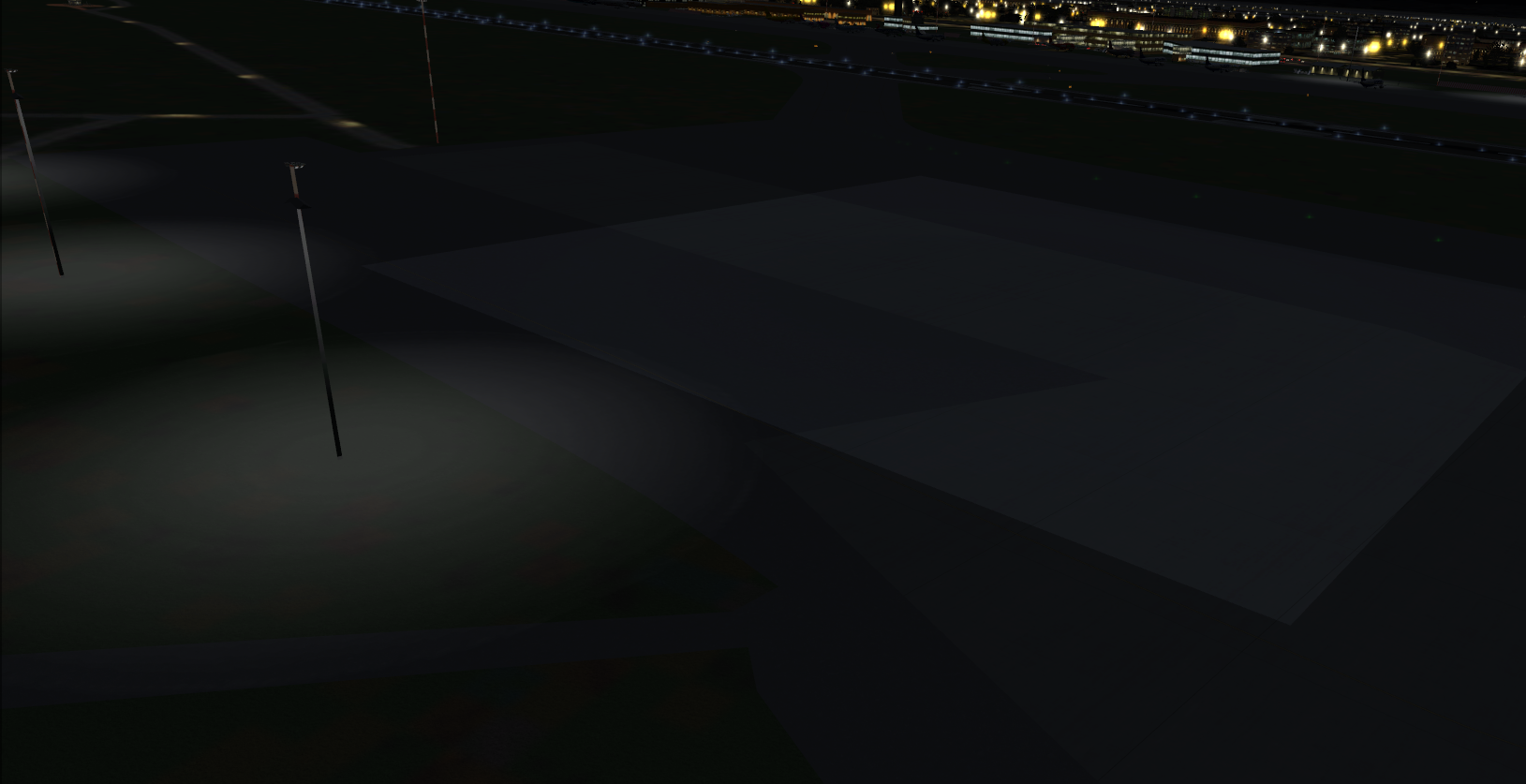
Lights.png


Does someone know the secret on creating this?
 
It is a consequence off your light pools' overlapping. You can incrementally change the altitude of each pole slightly and that action will put the conflicting planes on different levels; however there are other consequences to this work around. Another solution is to reduce the size or scale of your light poles so that the pools do not overlap.
 
Thats not realy the problem i'm having.

I've done some endless adjusting. Below you see the result. Two more things that I want to adjust. You still see the square. The black towards the edges is fully transparant. (i think the transparantcy isn't blended.) And second, it can be a bit more brighter.

Floodlight.png

I found this thread but the settings are not working for me. I'm using the stock texture of the lightpole_wash object which utilizes alpha.
 

Attachments

  • settings.png
    settings.png
    45.2 KB · Views: 497
It is odd because I have done the exact same procedure, more or less, through SU and MCX using the default FSX light as a basis; without the same consequence. Interesting effect though..
 
What I think is needs to happen is that the alpha layer is the mask for the non alpha layer.
Whereby the black of the alpha layer needs to be fully transparent.
 
It looks to me like the outer edges of the alpha channel need to be blacker while the center needs to be lighter. The extreme edges of the alpha should be pure black to avoid seeing the square shape of the texture.

Something like this (before & after):

alpha_before.jpg
alpha_after.jpg
 
That's weird because it's using the FSX Acceleration texture light_post_wash.dds. The poles on the left in my first post are those stock light poles that use this texture. And the original outer edges arent visible in those. I'm guesing they are absolute black at the edges.

Here are both rgb and alpha of these colors. I think it should be rgb underneath and masked by the alpha.

Light_pole_wash.png
 
Yes it does appear that the alpha is transparent at the edges of that texture. Strangely the LM variant of that texture has a pure white alpha channel? (although I see you're not using it) Are these stock lights the ones located in FSXP_FillerObjects.bgl BTW?
 
Yes correct. My thought were; that stock light is proven, so must easy to use. But turn out not to be the case. When I attach the LM to this the result is worse. What setting makes the LM go underneath the alpha of the diffuse texture? Maybe that makes it a lot brighter.
 
LMs usually overlay the day texture rather than replace it entirely when it gets dark so my only guess is that the day texture's alpha channel somehow continues to be used after dark. I would have thought the day texture's alpha would have been completely black making it totally transparent and the night texture's alpha would then do the alpha blending and supply the light glow. At least that's probably what I'd have tried if I were making a light splash. Live & learn I guess :) .

You can "steal" the material settings off the stock light and apply them to your own model, click the little green jigsaw puzzle icon in the MCX material editor then click the down arrow next to "New" and choose LIGHT_POST_WASH. On the right type a name (LIGHT_POST_WASH for example) and MCX will save those settings as LIGHT_POST_WASH.mcxmat in the ModelConverterX\templates folder. Then you can load your light object, assign the textures, and apply those material settings in the same manner you'd apply "set default transparent".
 
Your Brilliant!

That's a new trick for me and it worked!

more Yeah.PNG


Under certain angels they flicker a bit. I guess the height of 0.01 isn't high enough.

Thank you so much for your help.
 

Attachments

  • Yeah.PNG
    Yeah.PNG
    1 MB · Views: 541
  • Yeah.PNG
    Yeah.PNG
    1 MB · Views: 544
Back
Top