

arwasairl
Resource contributor
- Messages
- 33
- Country

Hi all, I just wanted to share this feature within Max that I think will greatly speed up workflows for organic modelling, that is objects that aren't hard surfaced. This tip is for those who aren't experienced in Max or are unaware of how to use this modifier.
Intro
To preface, these modifiers are exclusive to 3ds Max 2021, 2022, 2023 and 2024. 2021 and 2022 may require a separate installation of this modifier through your Autodesk account. 2023 and 2024 have these modifiers included by default.
If you are using any other version of Max, this tip will not work for you.
As I'm sure many of you are aware, MSFS 2020 can now handle millions of polygons through its rendering engine without any problem. For users of Max, that may mean you can now rely on TurboSmooth and OpenSubdiv. Below is an example of a switchguard that uses OpenSubdiv.

As you notice, the topology is terrible. Consisting of uneven vertex densities to N-gons and "exploding" vertices. These artifacts are generated through the subdivision's supporting loops. To fix this, we are going to employ 3 modifiers: Subdivide, Retopology, and Edit Poly.
NOTE: Using this method WILL INCREASE POLY COUNTS as clean quads will ALWAYS have more faces than N-gons. If you are modelling something with tight performance constraints, you are better off manually retopologizing. If you have a model that is either attached or combined with MANY small details, detach and separate those details from the model you want to retopologize, otherwise you will require an insanely high amount of polys in order to retain those small details.
Example
With my completed switchguard and subdivision, add a Subdivide modifier. There are 4 different subdivision modes, and in my experience, subdivide works best for hard surface models, whilst variable curvature works best for organic models. This may depend on your model's geometry and generally there is no one solution for all, so do test out each subdivision algorithm.
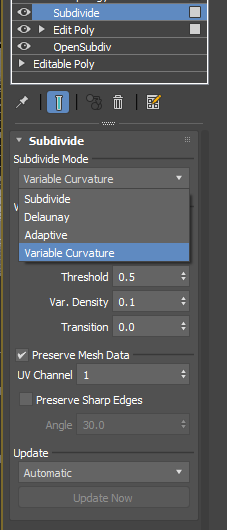
The default settings for Variable curvature tend to work well. However, do note in Variable Curvature, the model's normal may be distorted.


This can be fixed later after retopology. If these artifacts do not disappear, switch to the Subdivide algorithm.
Next, add the Retopology modifier. 5000 faces is generally a decent starting point, but if your model is highly intricate or large, then add more faces when necessary.
Organic models generally tend to have less distortions with Anisotropy 0.5 and Adaptivity 0.5, which allows faces to be rectangles instead of normal squares. This helps with models with many curves. Regularize on the other hand, I always suggest setting to 1.0 instead of 0.5. Other settings like Auto Edge can remain at it's default.
Once ready, hit Compute. This may take anywhere from a few seconds to a few minutes depending on your computer and the complexity of the model.

We now have a completed model with new topology! Weeellll.... Not quite. If you noticed around hard edges the model is very "kragly" and is not even. This is because the retopology modifier has no clue where the edges of the model is. We need to specify this manually through selective smoothing groups.
In the modifier list, hide both Subdivide and Retopology and go back to the modifier that is right below it. In my case, it is the smooth modifier. A popup indicating that the modifier relies on topology will appear, click "Yes" to continue. Add an Edit Poly modifier above the modifier you selected, and do NOT collapse the modifier stack.

Next, using the face selection mode, select and loop faces around your model where you want to define edges. This can be tricky depending on your model, and some errors may appear during the retopology process if edges are too close. Refer to the bottom of this post for errors.


Once your faces are selected, assign a Smoothing Group to the selection. This smoothing group can be any smoothing group as long as it is not smoothing group 1. In my case, I chose smoothing group 17.
You can now unhide the subdivide and retopology modifiers. Once unhidden, go back to the Retopology modifier and click "Reset". If your model does not subdivide at all, delete Retopology and Subdivide and re-add them to the modifier stack.
Press "compute" once again in the Retopology modifier. After a few seconds, your model now has nice and straight quads without all the mess from subdivision! Once this is done, you can then edit your model to fix any uneven edges or fix normals.

Errors
Errors are displayed on the bottom left, to the right of the MAXScript listener. These are a few of the most common error messages:
"Long and Thin triangles" - This may be as a result of models using curved or sloped edges that are incredibly long. Use the Variable Curvature algorithm to fix this, or manually set topology of the affected area before using Retopology.
"Edge constraints are too close to eachother" - This may be as a result of changing the Auto Edge settings in Retopology or defining a unique smoothing group to a loop that is too close to each other. For the latter, I suggest having a 2 to 3 face gap between each edge loop. Do not add edge loops to areas where there are no edges, otherwise bad distortions or failure to retopology may occur.
"Cross field map was not computed correctly" - Either use a different subdivision algorithm or use the "Mesh Cleaner" modifier to detect problems with your mesh.
Conclusion
I hope you guys have found this informative to some degree, as I for the longest time couldn't figure out how to set hard edges in the Retopology modifier. If you have any questions, ask them below.
Intro
To preface, these modifiers are exclusive to 3ds Max 2021, 2022, 2023 and 2024. 2021 and 2022 may require a separate installation of this modifier through your Autodesk account. 2023 and 2024 have these modifiers included by default.
If you are using any other version of Max, this tip will not work for you.
As I'm sure many of you are aware, MSFS 2020 can now handle millions of polygons through its rendering engine without any problem. For users of Max, that may mean you can now rely on TurboSmooth and OpenSubdiv. Below is an example of a switchguard that uses OpenSubdiv.
As you notice, the topology is terrible. Consisting of uneven vertex densities to N-gons and "exploding" vertices. These artifacts are generated through the subdivision's supporting loops. To fix this, we are going to employ 3 modifiers: Subdivide, Retopology, and Edit Poly.
NOTE: Using this method WILL INCREASE POLY COUNTS as clean quads will ALWAYS have more faces than N-gons. If you are modelling something with tight performance constraints, you are better off manually retopologizing. If you have a model that is either attached or combined with MANY small details, detach and separate those details from the model you want to retopologize, otherwise you will require an insanely high amount of polys in order to retain those small details.
Example
With my completed switchguard and subdivision, add a Subdivide modifier. There are 4 different subdivision modes, and in my experience, subdivide works best for hard surface models, whilst variable curvature works best for organic models. This may depend on your model's geometry and generally there is no one solution for all, so do test out each subdivision algorithm.
The default settings for Variable curvature tend to work well. However, do note in Variable Curvature, the model's normal may be distorted.
This can be fixed later after retopology. If these artifacts do not disappear, switch to the Subdivide algorithm.
Next, add the Retopology modifier. 5000 faces is generally a decent starting point, but if your model is highly intricate or large, then add more faces when necessary.
Organic models generally tend to have less distortions with Anisotropy 0.5 and Adaptivity 0.5, which allows faces to be rectangles instead of normal squares. This helps with models with many curves. Regularize on the other hand, I always suggest setting to 1.0 instead of 0.5. Other settings like Auto Edge can remain at it's default.
Once ready, hit Compute. This may take anywhere from a few seconds to a few minutes depending on your computer and the complexity of the model.
We now have a completed model with new topology! Weeellll.... Not quite. If you noticed around hard edges the model is very "kragly" and is not even. This is because the retopology modifier has no clue where the edges of the model is. We need to specify this manually through selective smoothing groups.
In the modifier list, hide both Subdivide and Retopology and go back to the modifier that is right below it. In my case, it is the smooth modifier. A popup indicating that the modifier relies on topology will appear, click "Yes" to continue. Add an Edit Poly modifier above the modifier you selected, and do NOT collapse the modifier stack.
Next, using the face selection mode, select and loop faces around your model where you want to define edges. This can be tricky depending on your model, and some errors may appear during the retopology process if edges are too close. Refer to the bottom of this post for errors.
Once your faces are selected, assign a Smoothing Group to the selection. This smoothing group can be any smoothing group as long as it is not smoothing group 1. In my case, I chose smoothing group 17.
You can now unhide the subdivide and retopology modifiers. Once unhidden, go back to the Retopology modifier and click "Reset". If your model does not subdivide at all, delete Retopology and Subdivide and re-add them to the modifier stack.
Press "compute" once again in the Retopology modifier. After a few seconds, your model now has nice and straight quads without all the mess from subdivision! Once this is done, you can then edit your model to fix any uneven edges or fix normals.
Errors
Errors are displayed on the bottom left, to the right of the MAXScript listener. These are a few of the most common error messages:
"Long and Thin triangles" - This may be as a result of models using curved or sloped edges that are incredibly long. Use the Variable Curvature algorithm to fix this, or manually set topology of the affected area before using Retopology.
"Edge constraints are too close to eachother" - This may be as a result of changing the Auto Edge settings in Retopology or defining a unique smoothing group to a loop that is too close to each other. For the latter, I suggest having a 2 to 3 face gap between each edge loop. Do not add edge loops to areas where there are no edges, otherwise bad distortions or failure to retopology may occur.
"Cross field map was not computed correctly" - Either use a different subdivision algorithm or use the "Mesh Cleaner" modifier to detect problems with your mesh.
Conclusion
I hope you guys have found this informative to some degree, as I for the longest time couldn't figure out how to set hard edges in the Retopology modifier. If you have any questions, ask them below.
Last edited:


