- Messages
- 20
- Country

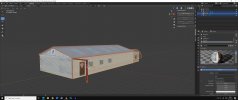
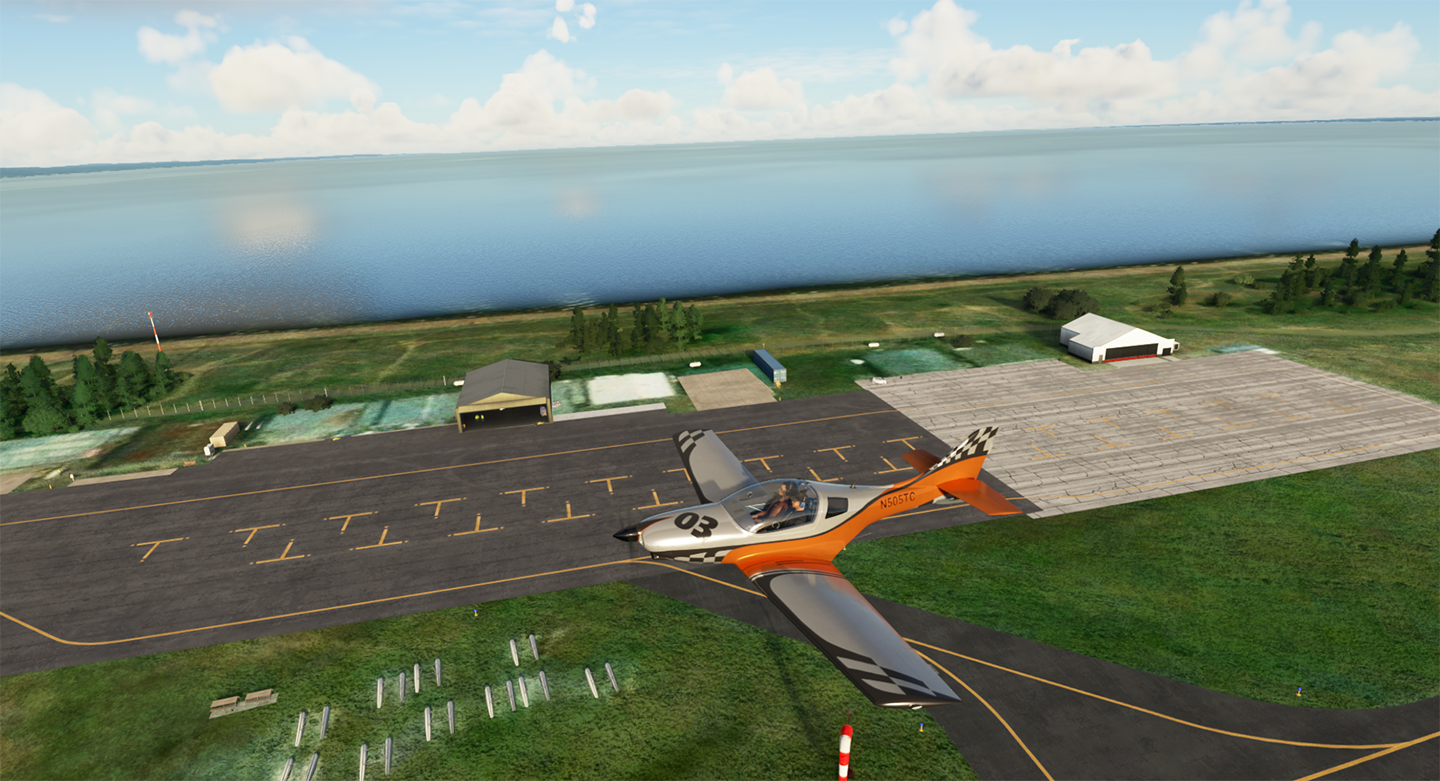
Is anyone getting an issue where their objects appear only when up close>? The missing hangars appear when getting up close.

Any other question that is not specific to an aspect of development or tool can be posted in the General chat forum.
By following these guidelines we make sure that the forums remain easy to read for everybody and also that the right people can find your post to answer it.
Make sure you apply scaling CTRL A in Blender before export.Is anyone getting an issue where their objects appear only when up close>? The missing hangars appear when getting up close.
View attachment 64837


Unfortunately you were correct...After a more thorough investigation in Blender it seems my object has already embedded in its mesh a duplicated plane placed just tenths of millimeters away from the other.I discovered it trying to edit the object by removing some of its faces.All faces are doubled.It was an object I downloaded for free from Turbosquid so I was unaware it was designed like this!Awesome, I will have to try that. I have painted textures on double side but 5hey leak through
You can try using the Mesh > Cleanup > Merge by Distance OptionUnfortunately you were correct...After a more thorough investigation in Blender it seems my object has already embedded in its mesh a duplicated plane placed just tenths of millimeters away from the other.I discovered it trying to edit the object by removing some of its faces.All faces are doubled.It was an object I downloaded for free from Turbosquid so I was unaware it was designed like this!
If the line is around your new joined object as if it's one single object instead of 2,3 e.t.c. and in the list appears only 1 model instead of 3 you're good to go.It's orange in mine too not green.Probably it depends on Blender versions.@AlpineScenery tried joining before doing the export but I still have an orange line around the model not green?


to be very simple. select all then ctrl a i then scale and use the pop up at the bottom and include distance and rotation. Then select all again (it does not have to be a single object. one of mine is 7 objects, no problem) just to be sure and export. I use a working directory to save to and if all looks good, I put the the three model files in airport/packagesources/modelLib, then I place all the textures in airport/packagesources/modelLib/texture. Make sure the blender references the image textures correctly to what you are actually using! Blender often appends a tag of. 001 or .002 (metal_rust.png.001) if you are doing a lot of work in there. Make sure the filename and the xml name are identical upon export as well as generate guid, tick every box you can except LOD (if u are not using that) and tangents (msfs isn't using it right now and it just causes error messages) see picture insert for settings. Another tip, use the "fspackagetool.exe" tool by dragging your xml file to it to build the package,. after it builds (hopefully sucessfully) copy your compiled project into your communities folder@AlpineScenery tried joining before doing the export but I still have an orange line around the model not green?
So,if I place my custom objects according to the described way inside an already made airport project and then rebuild the package,the objects will normaly appear in the SDK list?To be clear I use airport if I’m rebuilding the entire airport. If I’m just going to modify the outlying areas in a scenery project is fine. If you’re going to do the airport route you need to go into the sample folders and copy the section from the scenery xml parameters file into the airport data folder so that it will recognize scenery. There is a YouTube description on how to make an airport file made by flyingTheston. it’s a lot to go into here but you make your project folder name it after the airport CSFO and then you inside that he have your various folders including model library‘s textures etc.. when you build the project it will save it into a folder called projects. every time that you adjust your model or change the textures you replace the model library files with the appropriate new files and then rebuild your project using the external tool. It will update that project folder which you can then copy into your community folder. When you start the game the changes will be already there. If it is a new model that you’re adding it will be in the model list.
This works as described, but now I find one of my animations is a bit off -- how can I get it out of the group to fix it and then get it back in again?In a nutshell: if you want to animate multiple parts, you need to create a Non-Linear-Animation (NLA) group for them. The easiest way is to finish up all the keyframes (editing later on is a bit complicated)