• Which the release of FS2020 we see an explosition of activity on the forun and of course we are very happy to see this. But having all questions about FS2020 in one forum becomes a bit messy. So therefore we would like to ask you all to use the following guidelines when posting your questions:

    • Tag FS2020 specific questions with the MSFS2020 tag.
    • Questions about making 3D assets can be posted in the 3D asset design forum. Either post them in the subforum of the modelling tool you use or in the general forum if they are general.
    • Questions about aircraft design can be posted in the Aircraft design forum
    • Questions about airport design can be posted in the FS2020 airport design forum. Once airport development tools have been updated for FS2020 you can post tool speciifc questions in the subforums of those tools as well of course.
    • Questions about terrain design can be posted in the FS2020 terrain design forum.
    • Questions about SimConnect can be posted in the SimConnect forum.

    Any other question that is not specific to an aspect of development or tool can be posted in the General chat forum.

    By following these guidelines we make sure that the forums remain easy to read for everybody and also that the right people can find your post to answer it.

MSFS20 I'm having Difficulty with the ORM texture

Messages
52
Country
unitedstates
I have been trying to apply an Occlusion, Roughness, Metal texture to my project with 0 success. I have tried every texture I can come up with, including some stock MSFS comp textures. No effect.
They don't show up in Blender or the Simulator and the texture map doesn't save to the texture folder when exporting the model.

I get no error messages on export either.

At this point I think I missed some setting somewhere.

I've set the material to Standard with Opaque alpha mode.
The rest of my settings are shown bellow.

Thanks

ORM texture.jpg
 
Your metallic and roughness factors are not set to 1.0, so maybe that is a problem.
 
Thanks for responding rhumbaflappy. Setting roughness and metallic to 1 only creates a mat finish over the whole surface.
 
- Set material to Disabled
- Set material Msfs Standard
- Add your textures to the slots

According that you have Blender 3.6.x and Asobo plugin 1.3.3, it should work
 
Do you have a proper O R M texture with the ambient occlusion in the red channel, the roughness in the green channel and the metallic in the blue channel? What exact pixel size is you texture png?
 
MaMu, I have been using 4.2 with Ronh's exporter.

So I reinstalled 3.6.4 and Asobo plugin 1.3.3, loaded the file, made sure everything was in place and there is no difference.

WLPilot I think I put together a decent O R M but as a test I tried some stock MSFS textures on my project to check. No difference.

Checking my expectations.
If this is working right and I want to have polished metal next to flat paint on the same surface, right next to each other, then the green would represent the flat paint
and the blue would represent the metal. Paint flat and dull, metal shiny and bright, while where ever there is light red you have light and where you have dark red you have darkness (occlusion), correct?
 
MaMu, I have been using 4.2 with Ronh's exporter.

So I reinstalled 3.6.4 and Asobo plugin 1.3.3, loaded the file, made sure everything was in place and there is no difference.

WLPilot I think I put together a decent O R M but as a test I tried some stock MSFS textures on my project to check. No difference.

Checking my expectations.
If this is working right and I want to have polished metal next to flat paint on the same surface, right next to each other, then the green would represent the flat paint
and the blue would represent the metal. Paint flat and dull, metal shiny and bright, while where ever there is light red you have light and where you have dark red you have darkness (occlusion), correct?
No, it is not the colors red, green and blue that makes it, but what is in the channels for red, green and blue. That is a different thing. In the green channel you need a greyscale image representing the roughness of the material. Black=totally shiny, white=totally rough (not shiny). The metalness is a different set of properties and does not very much affect the shininess. Again, in the blue channel there should be a greyscale where black=no metal properties and white=fully metallic. Fully metallic does not mean shiny - you need a combination of the metalness and roughness to achive your desired look. The red channel also should have a greyscale representing the ambient occlusion details in your texture. Then these three channels have to be combined into one image, and that image then is placed in the MSFS properties Occlusion-Roughness-Metalness.
 
Last edited:
Here is an example. This is a repeating texture of a rusty metal surface.

The first picture is the albedo (the actual color texture of the surface).
EFSE_MetalRust (Small).png


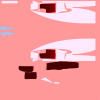
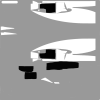
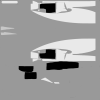
I extracted the channels from the COMP (or ORM or ARm or whatever you want to call it) image and made a combined image that shows the red channel on top left (neutral grey as there is no need for ambient occlusion details here), the green channel on the top right showing the variation in roughness (black is shiny/smooth, grey...white is various degrees of rough) of the surface. The bottom left is the blue channel showing where the bare metal (white) is visible through the various degrees of rust (grey...black). And finally the bottom right is how the final file that is used in the sim looks when those three channels are combined.
channels (Small).png


The third, purple-ish image is the one that goes into the Normal slot, defining the variation in heights on the surface.
EFSE_MetalRust_normal (Small).png
 
Last edited:
Hello...

AO or ambient should be white not gray for areas or materials not needed or used. The normal map is separate from the Comp map unless used for ground polys.
 
Last edited:
I've attached the O R M I created. This way we can determine or eliminate this as the culprit.
I appreciate all your responses.

Thank you.
 

Attachments

  • airframe_comp.png
    airframe_comp.png
    35.4 KB · Views: 168
It sounds like you have it set correctly except for the AO red channel - should be all white or 1 or 255 depending on you texture editor. A gray will make it have a shadow everywhere. meaning it will be as if it's covered.

Do you have an example blend file -

If you have issues then post on my git site. so I can resond there.
 
You are mis interpreting Roughness - a white is roughness and a zero is smooth.

This statement is incorrect
"the green channel on the top right showing the variation in roughness (white is shiny, grey...black is various degrees of rough) of the surface."

The roughness channel a 1 white is rough and a zero is smooth

This is correct
"The bottom left is the blue channel showing where the bare metal (white) is visible through the various degrees of rust (grey...black)."

white is metallic and black - zero is non metallic or dielectric - like paint or rust.

 
I've attached the O R M I created. This way we can determine or eliminate this as the culprit.
I appreciate all your responses.

Thank you.
What parts of this image should be shiny/smooth metal and what parts should be rough/matte paint?
 
I've attached an example blend file with the texture maps plus a map showing "What parts of this image should be shiny/smooth metal and what parts should be rough/matte paint?"

Also attached the grey scale channels.
 

Attachments

  • Example_blend_file.zip
    Example_blend_file.zip
    299.5 KB · Views: 167
  • O R M Arrangment.png
    O R M Arrangment.png
    52.5 KB · Views: 164
  • airframe_comp.png
    airframe_comp.png
    35.4 KB · Views: 160
  • Airframe_ALBD.png
    Airframe_ALBD.png
    457.4 KB · Views: 158
  • Blue1.png
    Blue1.png
    19.7 KB · Views: 174
  • Red1.png
    Red1.png
    12.6 KB · Views: 170
  • Green1.png
    Green1.png
    17.6 KB · Views: 234
A few comments on your comp texture

You want the majority of your texture to be flat paint - so that would be a very roughness (G) and a very low metallic (B) color - in gimp the G and B channels there are both a 0.6.
change to G - 0.9 and B = 0.1

DA40CGDFQ_2024.10.31_9h44m28s.png


DA40CGDFQ_2024.10.31_9h44m58s.png
You want the other parts to be metallic - A low G and a high B - you have both a high G and B
change to G = 0.1 and B = 0.9

DA40CGDFQ_2024.10.31_9h46m26s.png


DA40CGDFQ_2024.10.31_9h48m13s.png


Also you sample blend file is strange in that the backgroud is using an interior HDRI world texture - why interior , why not the default exterior one. The reflection look bad. Change you world mapping back to default too.


DA40CGDFQ_2024.10.31_9h59m37s.png
My suggestions
 

Attachments

I applied the comp texture you sent and it still has no effect on the model.

This is the same example file I uploaded.

The model is still all matte.

No effect.jpg
 
Your material is not a MSFS material. You've messed with the shading. Also, all textures should be of the same size, and all 32-bit PNG. Yours are mis-sized, and at 24-bit.
 
This is what I would first do:
Change the view to perspective, rather than orthographic, in Blender. Then change the material type to Decal, then change it back to Standard. This will reset the MSFS material type, and get rid of any shading manipulation. Then the COMP texture works as expected.
 
Back
Top