• Which the release of FS2020 we see an explosition of activity on the forun and of course we are very happy to see this. But having all questions about FS2020 in one forum becomes a bit messy. So therefore we would like to ask you all to use the following guidelines when posting your questions:

    • Tag FS2020 specific questions with the MSFS2020 tag.
    • Questions about making 3D assets can be posted in the 3D asset design forum. Either post them in the subforum of the modelling tool you use or in the general forum if they are general.
    • Questions about aircraft design can be posted in the Aircraft design forum
    • Questions about airport design can be posted in the FS2020 airport design forum. Once airport development tools have been updated for FS2020 you can post tool speciifc questions in the subforums of those tools as well of course.
    • Questions about terrain design can be posted in the FS2020 terrain design forum.
    • Questions about SimConnect can be posted in the SimConnect forum.

    Any other question that is not specific to an aspect of development or tool can be posted in the General chat forum.

    By following these guidelines we make sure that the forums remain easy to read for everybody and also that the right people can find your post to answer it.

MSFS20 Help please with Dark Metallic Textures from Substance Painter to Blender to MSFS.

Messages
181
Country
unitedkingdom
I have been exporting textures from Substance Painter into Blender as albedo, metallic and normal and then into MSFS.

Some textures display correctly, but some metallic textures display too dark with the material shadow on the upper surface and the bright surface underneath.

I am using the FS2020 presets for Substance Painter and I have been reading the forums and trying all weekend to obtain a bright metallic output with the shadowing underneath.

I have tried many different approaches including changing the project configuration in Substance Painter to both OpenGL and DirectX, setting the normal output in SP to OpenGL and some textures are exported correctly and others are too dark. I think I'm almost there, but just not quite getting it.

From what I have read, I think I need to flip the Y-axis in the Green Channel, but is it best to do this in Substance Painter, Blender or Paintshop etc?


Textures in Substance Painter:
e2S4hz.jpg


Textures in Blender:
pm7WY36Gj


Textures in MSFS:
pms5yXnMj
 
You need to use the DirectX Only - not OpenGL within SP. You shouldn't have to flip the Y channel (Green) on any of them. What does the AO map look like? Make sure the AO are mostly white.
 
Thanks Doug.

I tried opening a new SP project and making sure I selected Directx and re-baked the texture sets, but the textures are still dark in MSFS.

Below is the canopy AO/Metallic map.

poVBex7rj


Tyler
 
Is this just the AO Map? OR is this the metallic or a combination there of? Is this just the canopy and nothing else that was uv unwrapped?
 
You need the MSFS export preset for substance painter.

It combines the channels as needed for msfs. The metal map isn't only a metal map, it combines roughness and AO and metal in the rgb channels.

But besides that, are you sure it's too dark? Can't see that on my mobile.
It more looks like the shader/reflection changes because in msfs it reflects the sky etc.

Should that be bare metal? Hard to see ony screen
 
You need the MSFS export preset for substance painter.

It combines the channels as needed for msfs. The metal map isn't only a metal map, it combines roughness and AO and metal in the rgb channels.

But besides that, are you sure it's too dark? Can't see that on my mobile.
It more looks like the shader/reflection changes because in msfs it reflects the sky etc.

Should that be bare metal? Hard to see ony screen
The OP has stated that he was using the preset for MSFS.
 
It is the metallic. It only has the outer canopy on this UV as I split the inner and out canopy materials onto separate UV's. SP shows that there is an AO included within the Mesh Maps, but not a specific AO Channel.

The model is light underneath (bright metal), but dark on top, almost mat. I will take some screenshots in MSFS.

po4sNXuMj
 
Top down and bottom up views in MSFS.
pnZSZfCmj
pnXuCcHFj


Inverted top down and bottom up views in MSFS.

pmSPOCOLj
pogMXB8Xj


Light seems to be facing the ground and shadow facing the sky.
 
It would seem that the AO Map isn't being used (going by what you have said). It's dark because the AO channel is black.

Where did you get the MSFS Preset for SP? Along with the AO and the Metallic maps, there should also be a Roughness map. These 3 maps should be combine into 1 map either by you or SP.
 
Last edited:
Hello...

I doubt changing the material will correct the current problem. Have you combined the 3 maps (AO, Roughness, and Metallic)? or do you have a "_COMP" after SP? If you are only using the metallic map (*.png or *.jpg) and placing it with the metallic slot within Blender. This is why your model is dark within MSFS. You need to either combine the 3 maps from SP or have SP combine them for you.
 
Hi Doug,

Thank you. I have only been using the metallic map and placing it within the metallic slot in blender.

I will try and combine the 3 maps.

Tyler
 
Hello...

I doubt changing the material will correct the current problem. Have you combined the 3 maps (AO, Roughness, and Metallic)? or do you have a "_COMP" after SP? If you are only using the metallic map (*.png or *.jpg) and placing it with the metallic slot within Blender. This is why your model is dark within MSFS. You need to either combine the 3 maps from SP or have SP combine them for you.
Might have the same issue? How do I combine them in SP? From SP I get Albedo, Metal, Normal, Emissive. Thanks
 
Last edited:
Might have the same issue? How do I combine them in SP? From SP I get Albedo, Metal, Normal, Emissive. Thanks
Hello

Sounds like you either don't have the correct preset for MSFS or you are not having SP process the textures correctly.

If you are only getting the 4 that you have mentioned above then I can say you don't have the right Preset/ Exporter for MSFS. Otherwise, you are not setting it up for the preset prior to importing the model into SP.
 
Hi Doug,

Thank you. I have only been using the metallic map and placing it within the metallic slot in blender.

I will try and combine the 3 maps.

Tyler

The AO should be placed in the red channel, roughness into the green channel, and the metallic in the blue channel. If you need farther assistance, I would need to know graphic editor (Gimp or Photoshop) that you are using.
 
But he shouldn't have to do anything if he really has the preset. Like you had mentioned already too. The important thing is just to really choose it when exporting.

Probably im just confused because you replied to tango but the question came from fideell :-) but he has SP too it seems, so same is true for him.
In any way, with SP there is no need to combine anything. I simply export it and the metal looks imo right
 

Attachments

  • unknown-32~3.png
    unknown-32~3.png
    1.2 MB · Views: 269
But he shouldn't have to do anything if he really has the preset. Like you had mentioned already too. The important thing is just to really choose it when exporting.

Probably im just confused because you replied to tango but the question came from fideell :) but he has SP too it seems, so same is true for him.

In any way, with SP there is no need to combine anything. I simply export it and the metal looks imo right
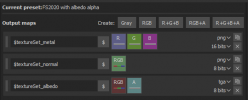
So this preset in SP is ok?
1621664015446.png
 

Attachments

  • 1621664050557.png
    1621664050557.png
    14.9 KB · Views: 243
I have both Gimp and Photoshop, but I have been using Photoshop more recently.

AO is in the red channel, Roughness in the green channel, and Metallic in the blue channel.

Could it be that the Normal is OpenGL?

Below are my SP export settings using the FS2020 template:


ExportSettingsPage1 23May21.JPG

ExportSettingsPage1a 23May21.JPG


Output Templates1 23May21.JPG

OutputTemplateAO 23May21.JPG


OutputTemplates Roughness 23May21.JPG


OutputTemplatesMetallic 23May21.JPG

OutputTemplatesNormal 23May21.JPG

OutputTemplatesBaseColour 23May21.JPG

ListOf Exports 23May21.JPG
 
Back
Top